
Prompt
Copy and customize
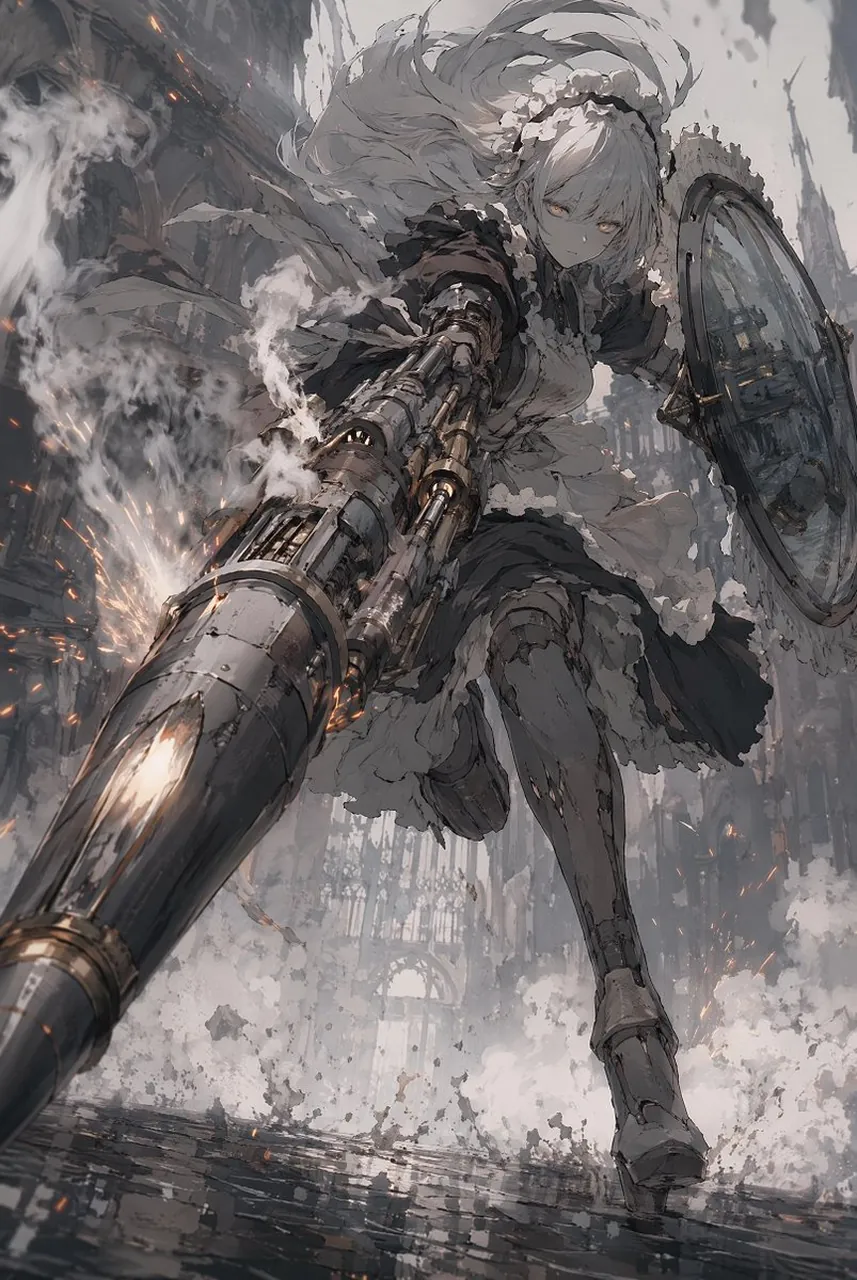
Create a dramatic vertical anime-style dark fantasy action illustration of a silver-haired battle maid charging directly toward the viewer through a ruined gothic city. Use an extreme low-angle, dynamic foreshortened perspective: her enormous mechanical lance/cannon dominates the foreground from the lower left, pointing outward, with complex metal barrels, armor plating, vents, glowing heat seams, smoke, and sparks. The character has long wind-swept silver-gray hair, pale skin, sharp golden eyes, a focused serious expression, and a frilled maid headdress. She wears a black-and-white Victorian maid dress fused with battle armor: puff sleeves, white apron, layered torn skirt, corset-like bodice, armored gauntlets, thigh armor, knee guards, and heavy boots. In her other hand she carries one large round metal shield on the right side of the composition. The background is a devastated cathedral-like urban battlefield with towering broken arches, jagged spires, shattered walls, drifting ash, explosions, steam clouds, wet reflective cobblestones, and orange embers cutting through a mostly monochrome gray palette. Emphasize motion, debris, smoke trails, splashing dust, and cinematic impact. Style should feel like highly detailed Japanese concept art with painterly brushwork, intricate mechanical design, gritty textures, muted charcoal grays, bright white smoke, small orange spark highlights, and no text or watermark. Use a vertical 2:3 composition, high detail, dramatic lighting, atmospheric depth, and intense battlefield energy.
Best for
Tips
Keep the main subject focused so dramatic vertical anime-style dark fantasy action illustration remains recognizable after style or lighting changes.
Adjust camera angle and aspect ratio before generation when the composition needs a specific platform format.