
Prompt
Copy and customize
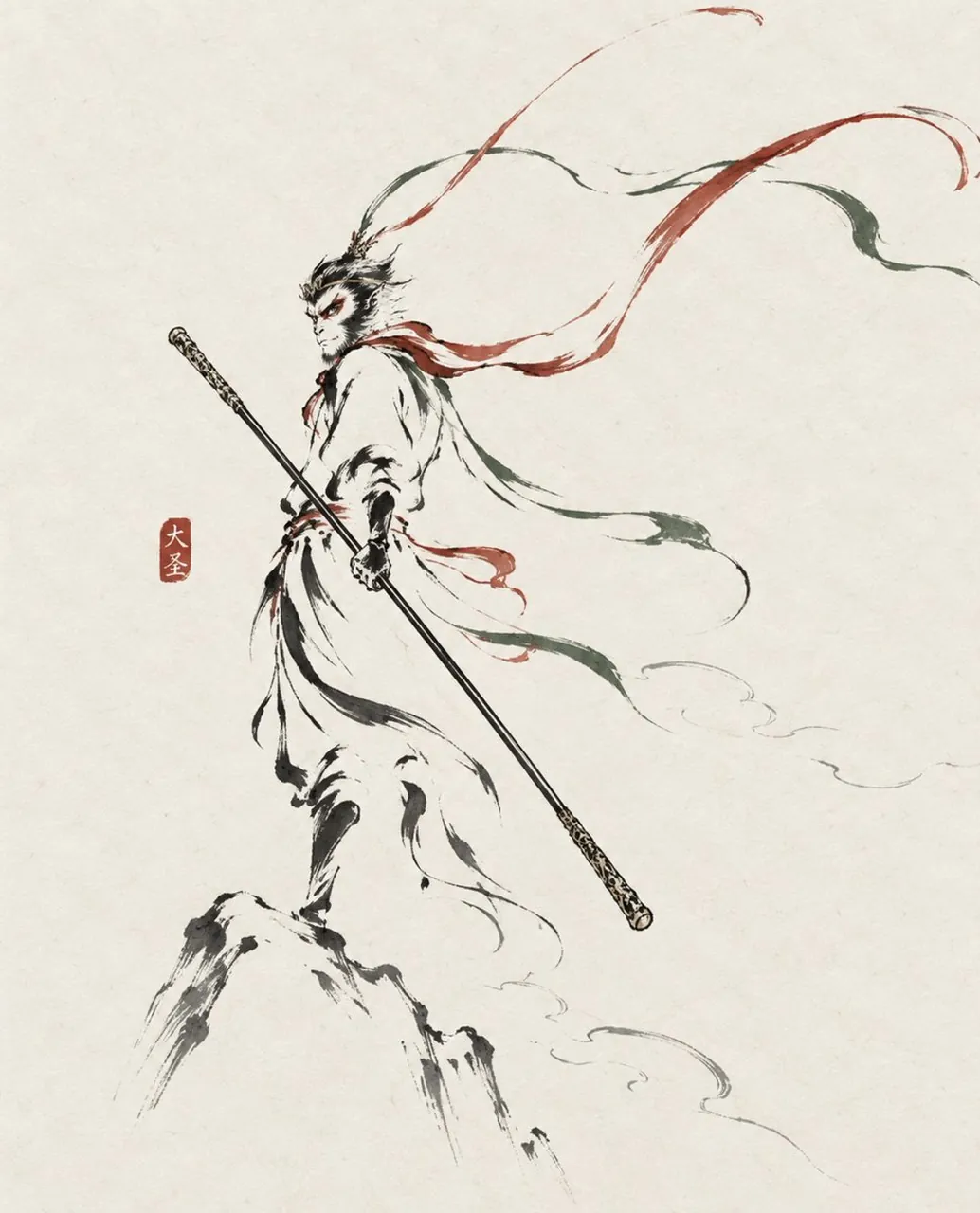
Create an Eastern ink-line character poster of Sun Wukong, the Monkey King standing heroically on a jagged mountain peak, facing left in a three-quarter profile. Use a mostly empty warm off-white rice-paper canvas with subtle fibrous texture and a minimalist Chinese brush-painting aesthetic. The figure should be recognizable but not realistic: a monkey-like face with sharp cheek lines, intense red-accented eyes, dark bristling fur around the head, and a slim athletic martial-arts silhouette. Dress the character in a loose flowing white robe with black ink folds, a red sash at the waist, and windblown ribbon streamers. He holds one long ornate staff diagonally across the body from upper left to lower right, with decorative gold-toned caps at both ends. Compose the poster with large negative space on the right and upper background; use black ink as the structural skeleton, restrained vermilion red for the scarf, eye accents, ribbons, and seal, and muted ink green for a few trailing cloth strokes and cloud-like motion lines. Add exactly one small red square seal stamp to the left of the character with the Chinese characters 大圣. Include exactly one main figure, one staff, one mountain peak, three long wind ribbons or cloth trails, several sparse cloud wisps drawn as thin broken ink lines, and no other characters. Make the brushwork expressive, dry-brush, calligraphic, asymmetrical, elegant, and dynamic, like a traditional East Asian ink wash poster with modern graphic restraint.
Best for
Tips
Keep the main subject focused so n Eastern ink-line character poster of Sun remains recognizable after style or lighting changes.
Adjust camera angle and aspect ratio before generation when the composition needs a specific platform format.