
Prompt
Copy and customize
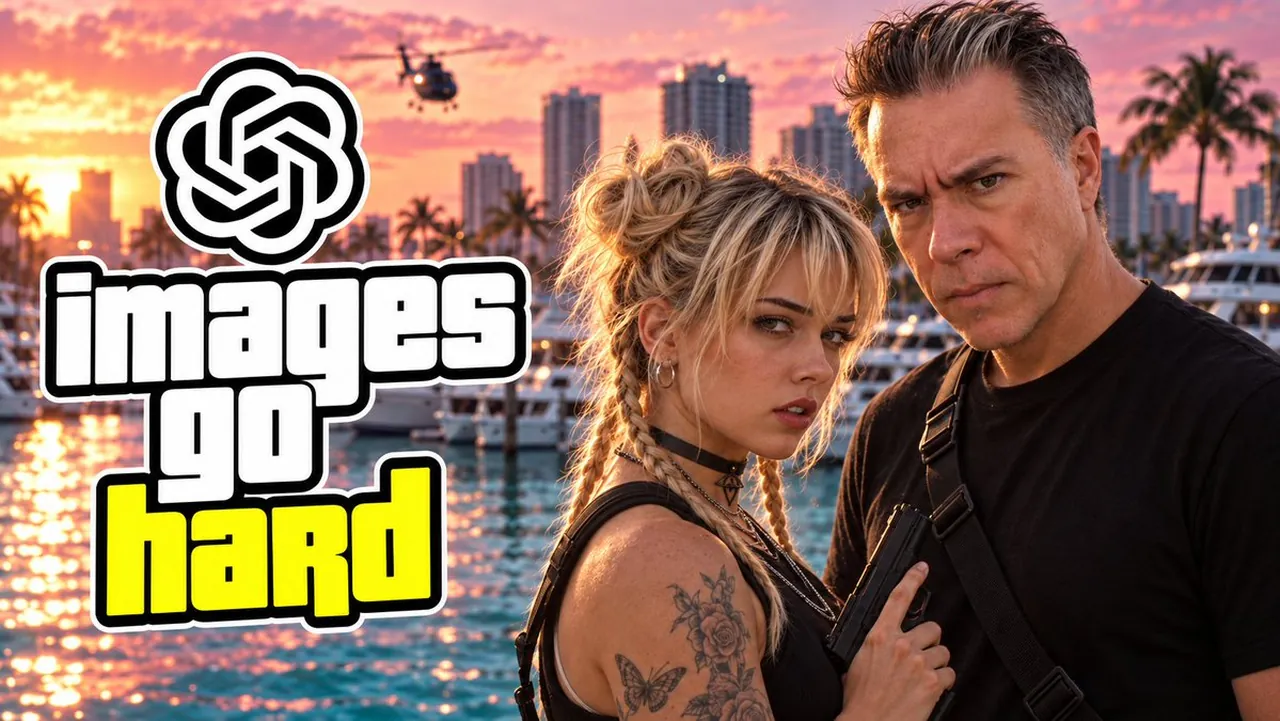
Create a cinematic YouTube thumbnail in a wide 16:9 aspect ratio, ultra-detailed photorealistic action-movie style. The scene is set at a luxury marina during a vivid orange-pink sunset, with sparkling water reflections, docked white yachts, palm trees, tall city high-rises in soft focus, and one small black helicopter flying in the sky near the upper left-center. On the right side, show two intense action characters cropped from waist/chest up: a young woman with messy blonde hair in a bun plus two braids, smoky eye makeup, hoop earrings, a black choker, black tactical tank top, visible floral and butterfly tattoos on her shoulder/upper arm, holding a black pistol close to her chest; beside her is a stern middle-aged man with short salt-and-pepper hair, wearing a plain black T-shirt and black tactical shoulder straps. Both stare directly at the viewer with serious expressions, lit by warm sunset rim light. On the left side, place a large graphic text stack and logo: at the top a black OpenAI knot logo inside a thick white sticker-like outline; below it exactly three stacked words reading “images” in huge white lowercase block letters, “go” in white, and “hard” in bright neon yellow. Text must use a heavy rounded bold sans-serif font with thick black shadow/outline and white outer stroke, occupying the left half of the image. High contrast, saturated colors, dramatic thumbnail composition, sharp faces, shallow depth of field background, no extra text, no watermark.
Best for
Tips
Keep the main subject focused so cinematic YouTube thumbnail in a wide 16 remains recognizable after style or lighting changes.
Adjust camera angle and aspect ratio before generation when the composition needs a specific platform format.