
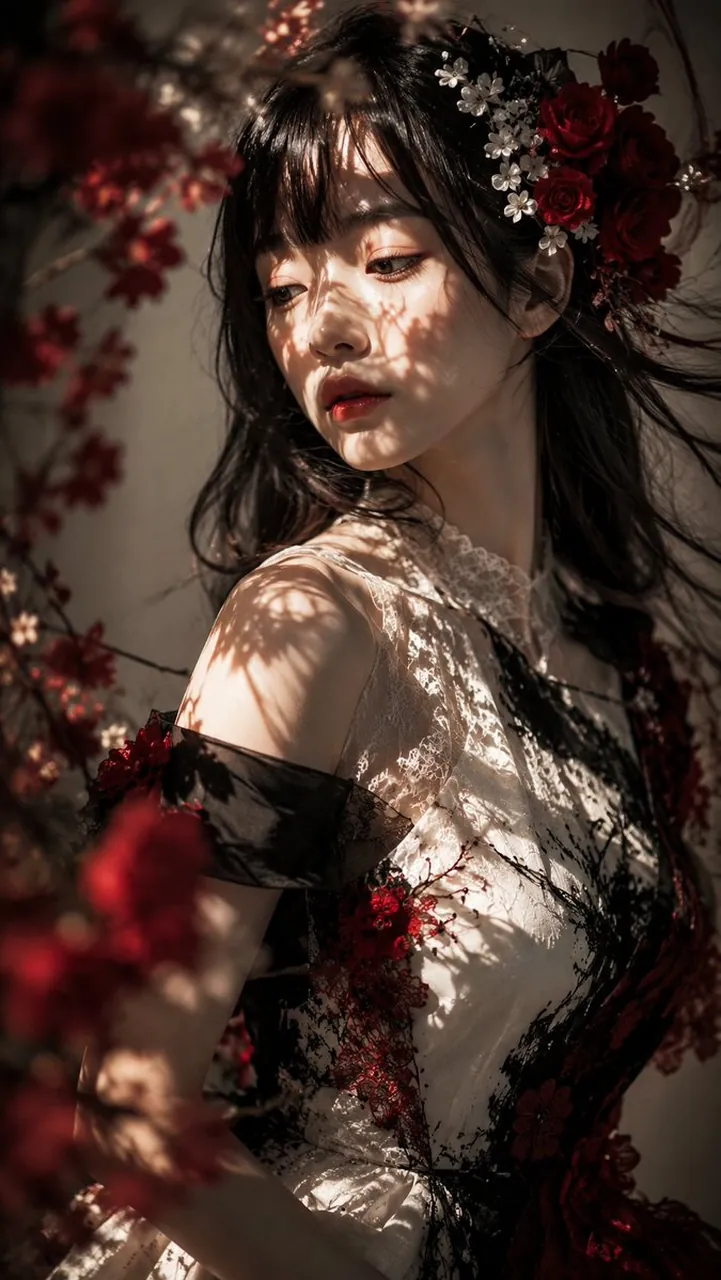
Prompt
Copy and customize
Create a vertical cinematic photorealistic portrait of a young East Asian woman in a moody garden setting, shown from the waist up in a three-quarter pose, looking down and to the left with a calm, melancholic expression. She has long black hair with soft messy bangs and loose windblown strands. Her hair is decorated on the right side with exactly 2 deep red rose blossoms, 1 darker red flower cluster, and 8 small white blossoms with tiny stems. She wears an elegant sleeveless high-neck lace dress in ivory white, with intricate black lace overlay, dark red floral embroidery, a narrow waist seam, and a sheer black off-shoulder sleeve band on the visible arm. Surround her with blurred foreground and background branches of red flowers, including one large out-of-focus red flower cluster at the lower left foreground and scattered red blossoms along the left edge. Use dramatic natural sunlight filtered through leaves and branches, casting sharp organic shadow patterns across her face, neck, shoulder, and dress. Emphasize beautiful chiaroscuro, warm highlights, deep soft shadows, shallow depth of field, creamy bokeh, delicate skin texture, glossy lips, detailed eyelashes, and a romantic gothic floral atmosphere. Composition should be vertical 9:16, close portrait framing, subject slightly right of center, with a muted beige-gray wall background and rich crimson accents. Style: ultra-realistic fashion editorial photography, high detail, soft film grain, natural color grading, no text, no watermark.
Best for
Tips
Keep the main subject focused so vertical cinematic photorealistic portrait of a young remains recognizable after style or lighting changes.
Adjust camera angle and aspect ratio before generation when the composition needs a specific platform format.