
Prompt
Copy and customize
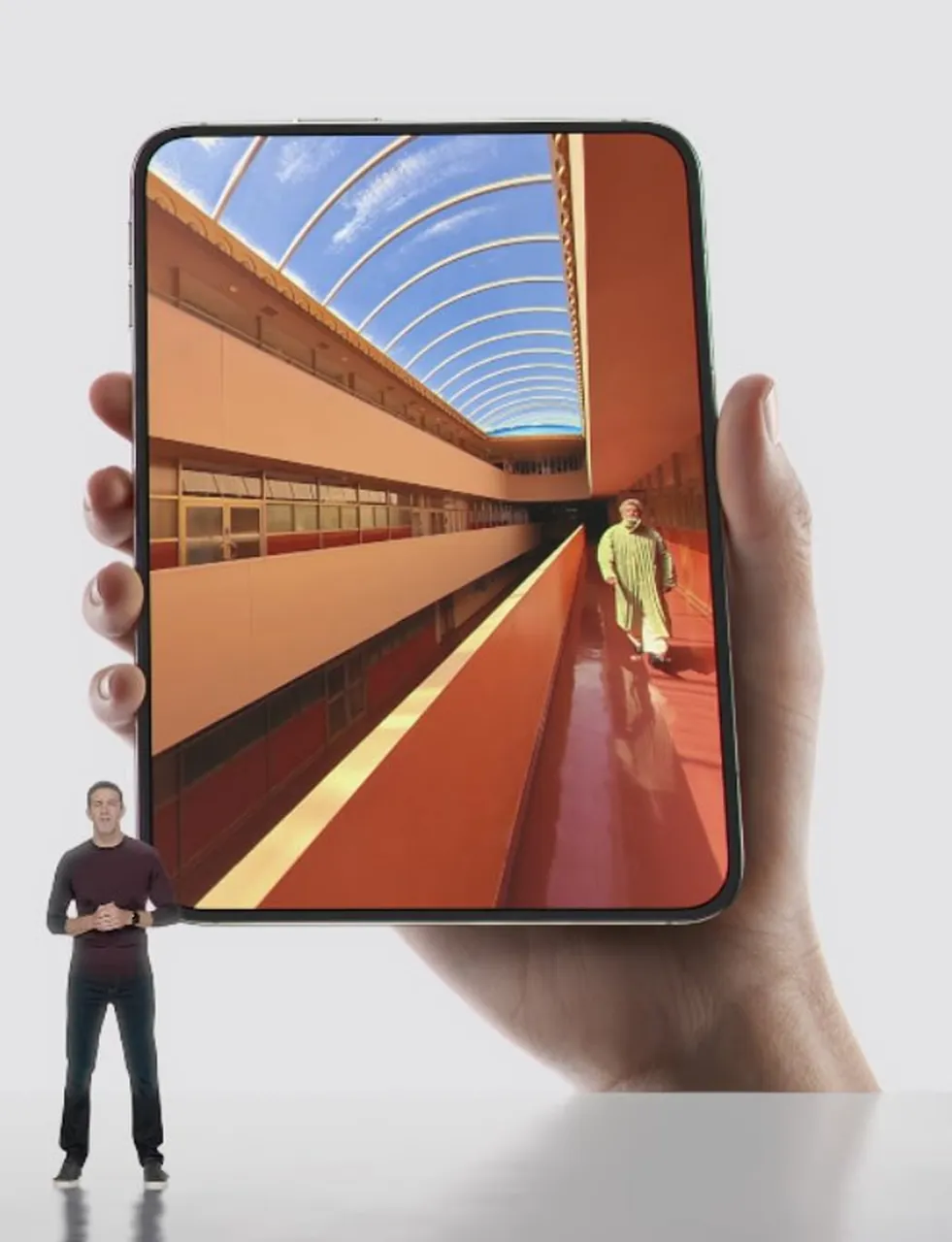
Create a clean studio product-ad style image on a light gray seamless background: a large, nearly square foldable smartphone/tablet is held upright in one realistic right hand, filling most of the frame, with thin black rounded bezels and a subtle dark metal edge. On the device screen, show a vivid ultra-wide architectural corridor photograph: warm orange and red walls, glossy red floor, long balcony railings and window bands on the left, a tall orange wall on the right, and a curved glass roof with white ribs revealing a blue sky with wispy clouds; the perspective should be strongly exaggerated and immersive, vanishing toward the center. Include exactly 2 visible human figures: one tiny presenter standing outside the device at the bottom left, full body, wearing a dark burgundy long-sleeve shirt, black pants, and black sneakers, hands clasped as if giving a keynote; and one small person inside the screen corridor near the right side wearing a light green outfit and carrying a white bag. Use Apple-keynote-like minimal lighting, soft shadows, realistic skin texture on the hand, crisp device edges, and a polished photorealistic composite. The device should appear almost like a portal rather than a normal phone screen. Set the main screen scene to a vivid orange-red architectural corridor with a curved glass roof and blue sky, the device type to large foldable smartphone tablet, the presenter outfit to dark burgundy long-sleeve shirt, black pants, black sneakers, the background color to light gray, and the inside-screen person outfit to light green outfit with a white bag.
Best for
Tips
Keep the main subject focused so clean studio product-ad style image on a remains recognizable after style or lighting changes.
Adjust camera angle and aspect ratio before generation when the composition needs a specific platform format.