
Prompt
Copy and customize
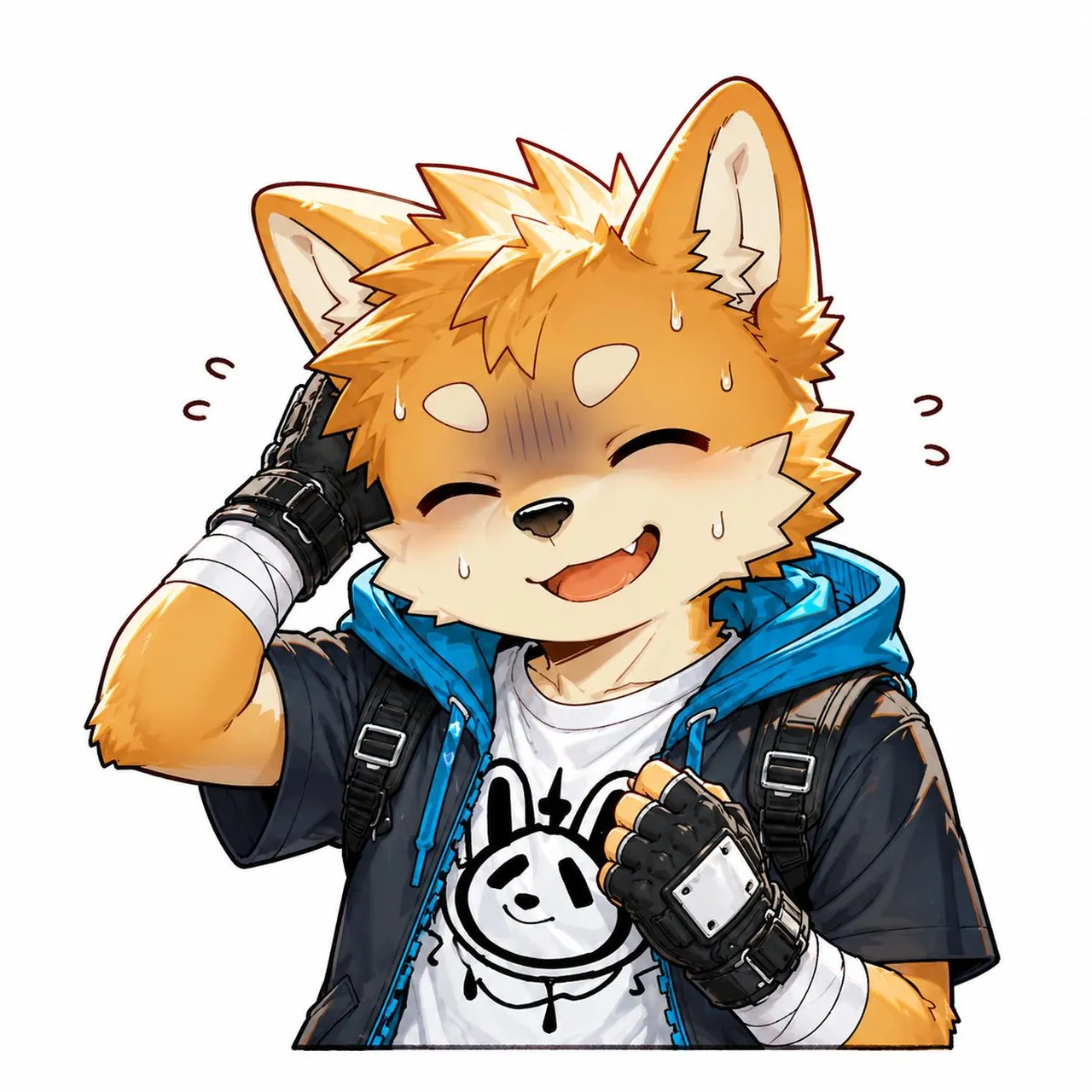
Create a square 1:1 anime-style sticker illustration on a clean white background, featuring a single cheerful anthropomorphic fox boy with orange fur and cream muzzle/cheeks, large upright fox ears, spiky golden-orange hair, and a fluffy youthful face. He is laughing with closed crescent eyes, an open smiling mouth with one small fang visible, and a slightly embarrassed expression shown by a bluish-purple shaded blush band across the upper face and exactly 5 visible sweat drops on the face. Pose him from the waist up, centered, with his left hand behind his head in a sheepish scratch and his right fist held near his chest. Add exactly 4 small curved motion/emotion marks around the head, 2 on the left and 2 on the right. Outfit: black short-sleeve jacket with a bright cyan-blue hood and zipper trim, black backpack straps with silver buckles over both shoulders, white T-shirt with a simple black doodle bunny face graphic, black fingerless gloves with metallic silver knuckle plates, and white bandage wraps on both wrists/forearms. Use crisp clean line art, cel-shaded anime rendering, glossy highlights on hair and ears, warm orange and cream fur tones, vivid cyan accents, and a cute expressive mascot/furry character style. Keep the background plain white with no text, no watermark, no extra characters, and no scenery. The character can be customized as anthropomorphic fox boy, orange with cream muzzle and cheeks, bright cyan blue, simple black doodle bunny face, and embarrassed laughing smile.
Best for
Tips
Keep the main subject focused so square 1 1 anime-style sticker illustration on remains recognizable after style or lighting changes.
Adjust camera angle and aspect ratio before generation when the composition needs a specific platform format.