
Prompt
Copy and customize
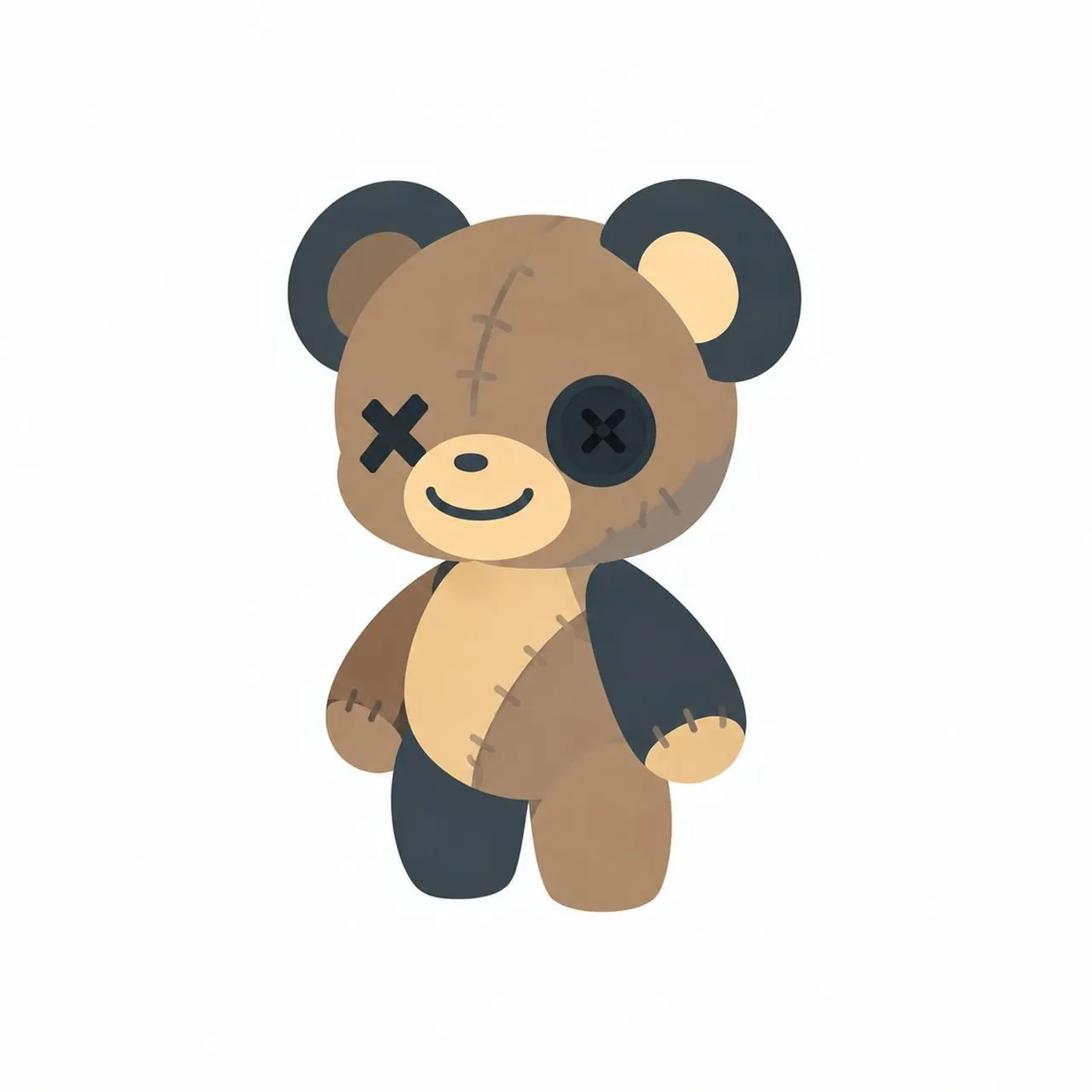
Create a cute 3D game character sprite-style illustration of a small patchwork teddy bear mascot named Patchy Bear, centered on a plain white background with lots of empty space. The bear has an oversized round head, a small rounded body, short dangling arms, and stubby legs, posed in a gentle walking stance with one arm slightly forward and one leg lifted. Use soft toy-like materials with a matte plush/vinyl look, rounded edges, subtle ambient occlusion, and clean minimal lighting. The main fur color is warm caramel brown, contrasted with dark charcoal-black fabric patches on the ears, one arm, and one leg, plus pale cream fabric on the muzzle, belly, inner ear, and paw. The face is adorable and slightly spooky: one eye is a black stitched X, the other eye is a large dark round button with an X-shaped stitch in the center, a tiny oval black nose, and a simple curved smiling mouth. Add visible patchwork details: exactly 8 stitch groups total, including 3 vertical stitches on the forehead seam, 2 short stitches on the right cheek seam, 2 stitches on the diagonal belly seam, and 1 stitch group on the left arm seam. Keep the design simple, readable, and suitable for conversion into a 16-frame game sprite sheet later, but show only one full-body character in this image. Use a soft pastel kawaii 3D style, no text, no props, no floor shadow beyond a very faint soft contact shadow, no background scenery.
Best for
Tips
Keep the main subject focused so cute 3D game character sprite-style illustration of remains recognizable after style or lighting changes.
Adjust camera angle and aspect ratio before generation when the composition needs a specific platform format.