
Prompt
Copy and customize
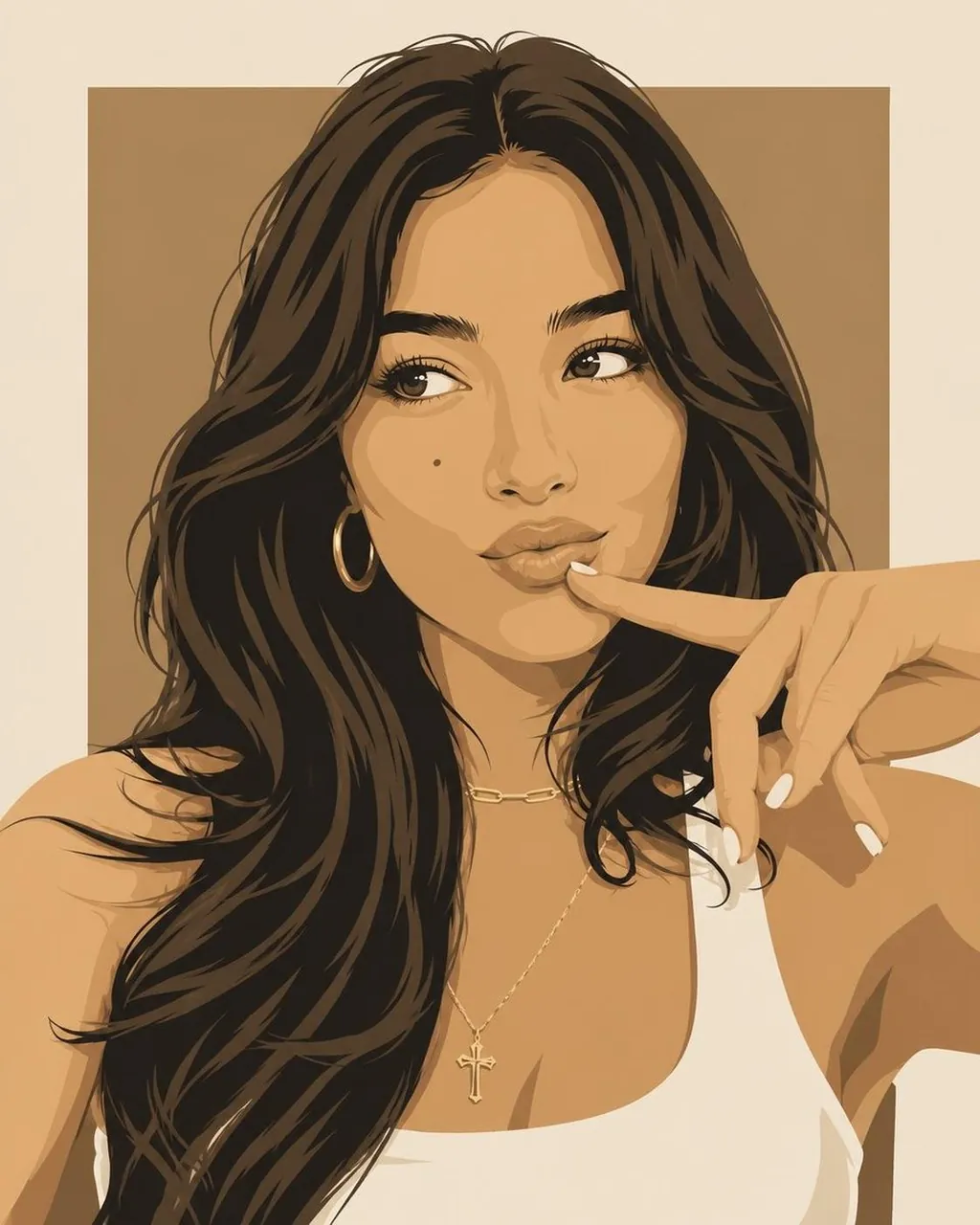
Create a cohesive diptych-style editorial illustration featuring two separate close-up portraits, one beautiful young woman and one handsome young man, both rendered in the exact same modern flat-vector fashion illustration aesthetic. The woman has long flowing dark-brown hair, expressive almond-shaped eyes, defined brows, soft full lips, a subtle beauty mark on her cheek, large gold hoop earrings, delicate layered gold necklaces, a white sleeveless top, and one hand raised naturally near her lips with elegant white manicured nails; the man has short textured platinum-blond hair, strong jawline, defined eyebrows, light-colored eyes, straight nose, natural lips, and wears a simple oversized white crew-neck shirt. Use simplified geometric facial planes, smooth clean shapes, crisp linework, subtle tonal shading, refined layered colors, and sophisticated editorial proportions. Give the woman a warm tan rectangular background surrounded by an ivory/cream canvas, and the man a bold red rectangular background surrounded by the same ivory/cream canvas. Maintain consistent lighting, illustration technique, proportions, and visual language across both portraits. Contemporary luxury fashion magazine aesthetic mixed with minimalist vintage poster design, elegant color blocking, polished graphic composition, highly detailed hair, clean edges, sophisticated and artistic, no photorealism, no 3D rendering, no text, no logos, vertical 4:5 composition.
Best for
Tips
Keep the main subject focused so cohesive diptych-style editorial illustration featuring two separate remains recognizable after style or lighting changes.
Adjust camera angle and aspect ratio before generation when the composition needs a specific platform format.