
Prompt
Copy and customize
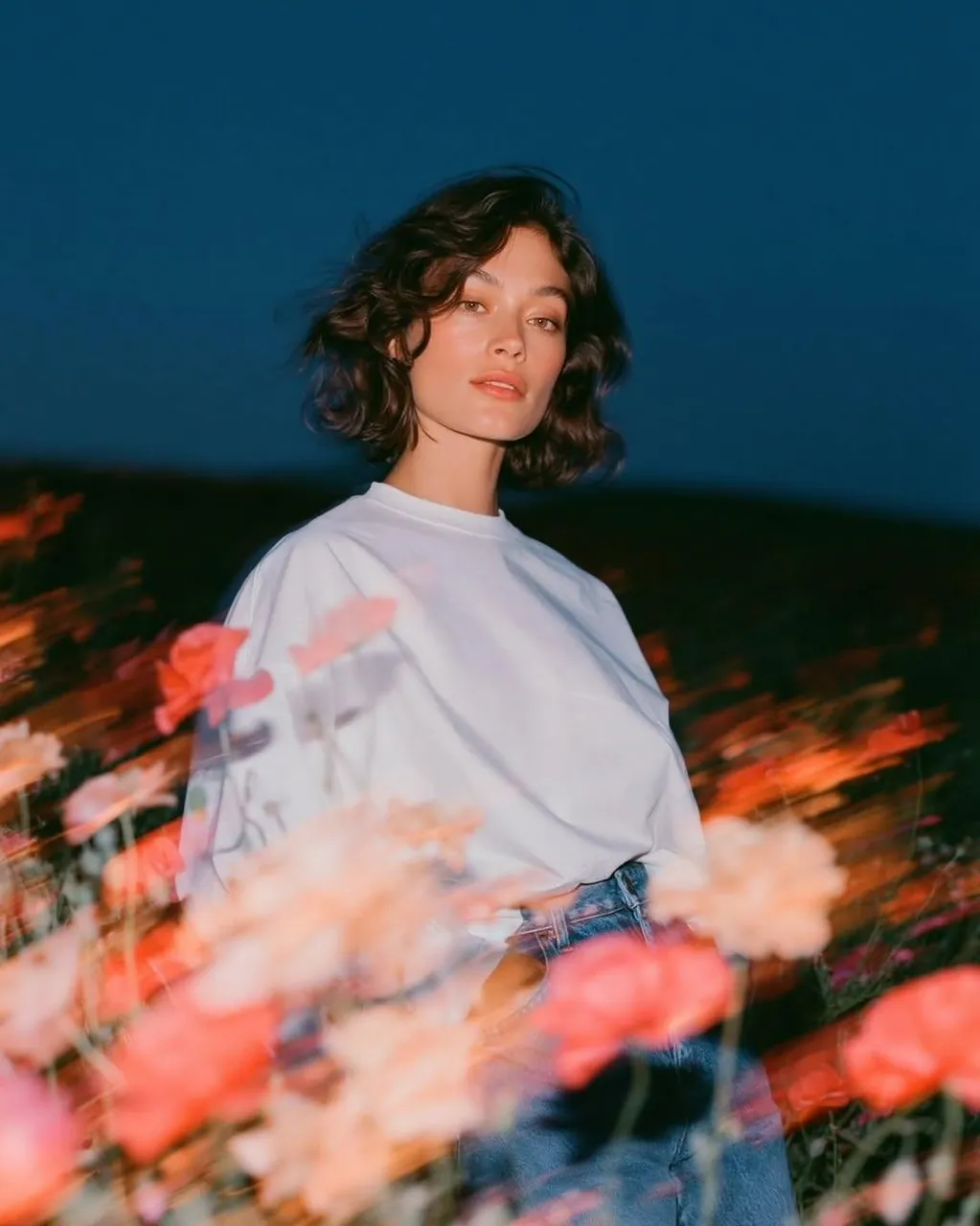
Create a cinematic fashion editorial portrait at blue hour in an open wildflower field. A beautiful young woman with short, softly wavy dark hair and natural makeup stands among blooming pink and white poppies, wearing an oversized white crew-neck T-shirt tucked into high-waisted vintage blue jeans. She gazes directly into the camera with a calm, effortless expression while a gentle breeze moves her hair.
Photograph using a slow shutter with rear-curtain flash, keeping the subject perfectly sharp while the flowers in the foreground create glowing motion-blur streaks and painterly light trails sweeping diagonally across the frame. Warm flash illumination freezes the model against a rich deep navy twilight sky, creating a striking contrast between cool ambient light and warm floral highlights.
Foreground filled with heavily blurred flowers, soft bokeh, translucent ghosting, glowing streaks, dreamy long-exposure movement, and subtle lens bloom. Background fades into a dark meadow with minimal distractions, emphasizing the subject.
Editorial fashion photography, luxury campaign aesthetic, cinematic color grading, Kodak Portra 400 tones, soft skin texture, natural color rendition, high dynamic range, realistic fabric folds, premium styling, shallow depth of field, ultra-detailed, photorealistic, 85mm lens, f/1.8, ISO 400, 1/5s exposure with rear-curtain flash, crisp eyes, volumetric atmosphere, award-winning fashion photography, magazine cover quality, 4:5 aspect ratio.
Best for
Tips
Keep the main subject focused so cinematic fashion editorial portrait at blue hour remains recognizable after style or lighting changes.
Adjust camera angle and aspect ratio before generation when the composition needs a specific platform format.