
Prompt
Copy and customize
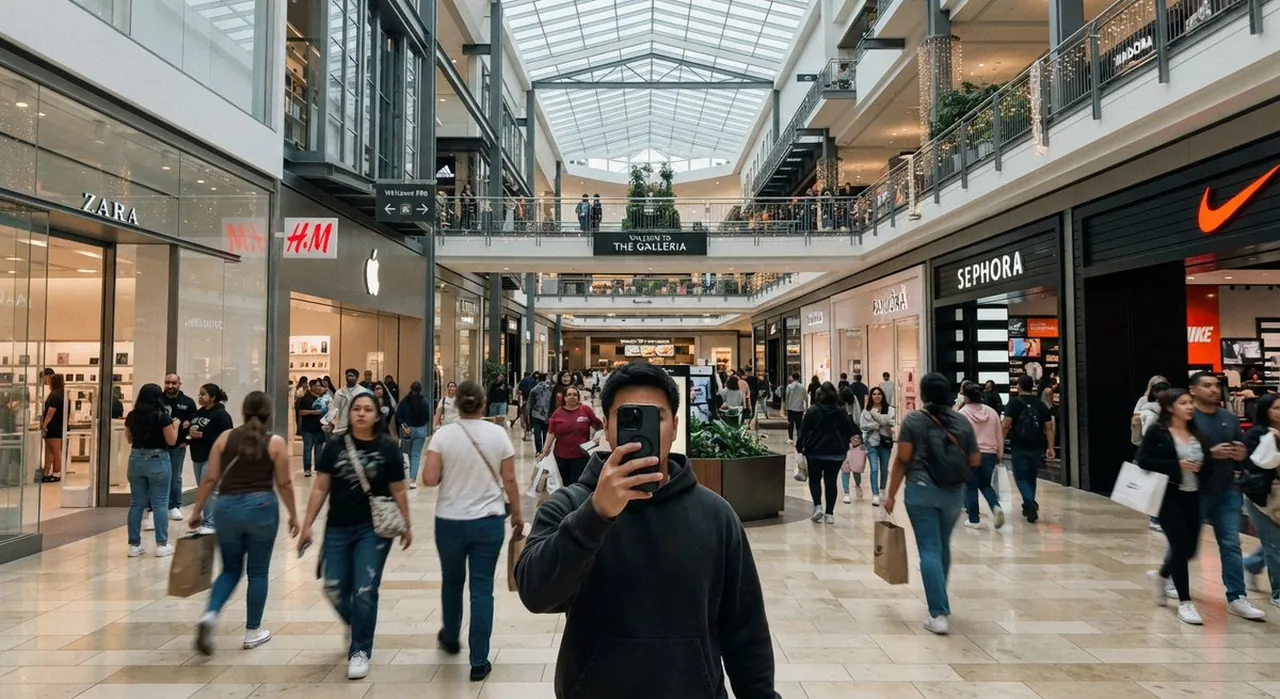
Create a casual iPhone-style ultra-wide photo taken inside a modern indoor shopping mall, as if shot at chest height by a person taking a mirrorless front-facing selfie with their phone. In the foreground, center a young man wearing a dark charcoal hoodie, holding a black smartphone directly in front of his face so his face is mostly hidden. The mall is bright and busy, with many shoppers walking in both directions, slight motion blur on moving people, and a polished beige stone tile floor reflecting soft overhead light. Use a wide 16:9 horizontal composition with strong central perspective leading down the main concourse. The architecture has two visible shopping levels, glass railings, dark metal beams, balconies, hanging warm string lights, planters with greenery, and a large geometric glass skylight ceiling. Include exactly five prominent recognizable storefront signs: ZARA on the left, H&M on the left-center, an Apple logo store on the left-center, SEPHORA on the right, and a Nike swoosh storefront on the far right. Add a central overhead sign reading THE GALLERIA. Make the image look like a realistic casual smartphone snapshot rather than a staged commercial photo: natural indoor lighting, mild lens distortion, candid crowd spacing, imperfect framing, and documentary realism. The main customizable subject is a young man in a dark charcoal hoodie; keep the setting as a large upscale indoor shopping mall.
Best for
Tips
Keep the main subject focused so casual iPhone-style ultra-wide photo taken inside a remains recognizable after style or lighting changes.
Adjust camera angle and aspect ratio before generation when the composition needs a specific platform format.