
Prompt
Copy and customize
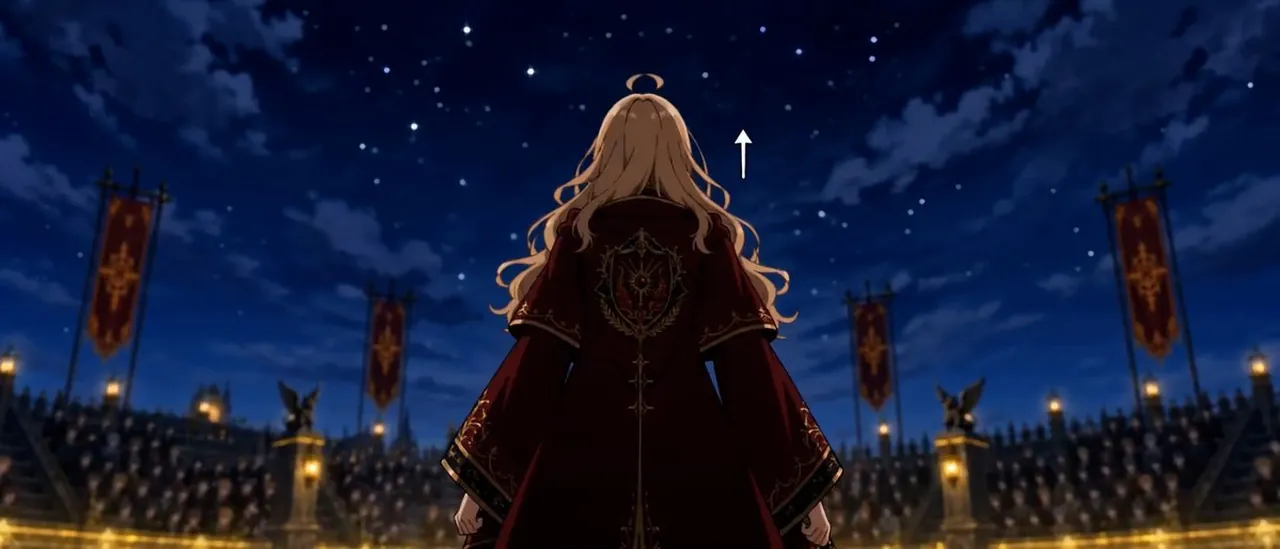
Create a cinematic widescreen anime keyframe in a dark fantasy academy or royal-arena setting at night. The camera is placed behind a single central character, a young noble-looking person with very long wavy golden blond hair and a small ahoge curl on top, standing upright and facing away toward a vast crowd. They wear an ornate deep burgundy red ceremonial cloak with black shadowed lining, gold trim on the sleeves and hem, and a large intricate gold-and-crimson crest embroidered on the back. Their arms hang at their sides, hands visible near the lower edges of the cloak, posture calm and commanding. The scene is a grand outdoor stadium or ceremonial courtyard filled with a dense blurred audience stretching across the lower background. Include exactly four tall vertical red banners with gold emblems, two on the left side and two on the right side, mounted on black poles. Include exactly two stone pedestal statues with dark winged creatures, one left of center and one right of center, each lit by warm lantern light. The foreground and lower arena glow with golden illumination, contrasting with a deep navy-blue starry sky full of small stars and scattered dramatic clouds. Add a small plain white upward-pointing arrow symbol floating in the sky just above and to the right of the character’s head, like an editing annotation. Use high-quality Japanese anime film style, dramatic backlighting, rich contrast, soft depth of field in the crowd, detailed fabric embroidery, symmetrical composition, and a 2.39:1 cinematic aspect ratio. No subtitles, no watermark, no extra characters in the foreground.
Best for
Tips
Keep the main subject focused so cinematic widescreen anime keyframe in a dark remains recognizable after style or lighting changes.
Adjust camera angle and aspect ratio before generation when the composition needs a specific platform format.