
goenhance logo

MiniMax Music 2.6

From simple prompts to structured songs, MiniMax Music 2.6 gives you more control over style, mood, BPM, key, and arrangement.

Audio Showcase

Audio Showcase Description

Saga of Old

Saga of Old

3:20
Summer Sky

Summer Sky

2:25
Joyful Spin

Joyful Spin

2:25

How To Use MiniMax Music 2.6?

01

Open AI Music And Choose MiniMax 2.6

Go to the AI Music page, select MiniMax 2.6 as the model, then choose whether you want to make a Song or an Instrumental.

02

Enter Your Prompt, Styles, Or Lyrics

Describe the sound you want in simple language. You can add a MiniMax Music 2.6 prompt, optional lyrics, and style tags like EDM, synth, drop or cinematic, orchestral.

03

Click Generate And Refine

Click Generate to get your first result. If needed, adjust the mood, vocal type, energy, or instruments, then run it again for a better second draft.

What Makes MiniMax Music 2.6 Stand Out
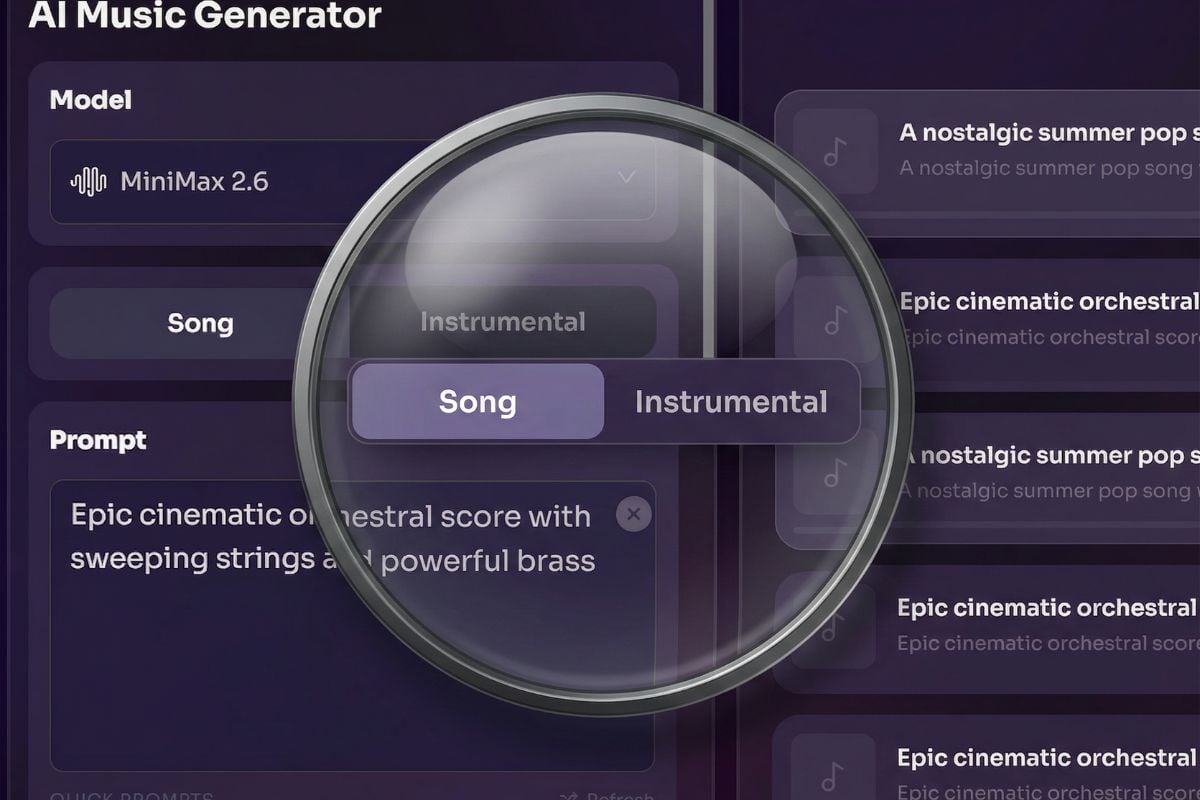
Song And Instrumental In One Model Flow

MiniMax Music 2.6 works well when you need flexibility without extra setup. You can create a vocal track when you want a full song, or switch to MiniMax Music 2.6 instrumental mode when you only need background music, intro cues, or a cleaner audio bed.

Song And Instrumental In One Model Flow of MiniMax Music 2.6

Control Genre, Mood, BPM, Key, And Song Structure In One Prompt

MiniMax Music 2.6 makes music direction feel much easier to manage. Instead of relying on a vague text idea, you can guide the result with genre, mood, BPM, key, vocal feel, and even section planning like intro, verse, chorus, or bridge. That gives creators a better chance of getting music that sounds deliberate, not accidental. For the official model background, the MiniMax music generation guide gives a helpful overview.
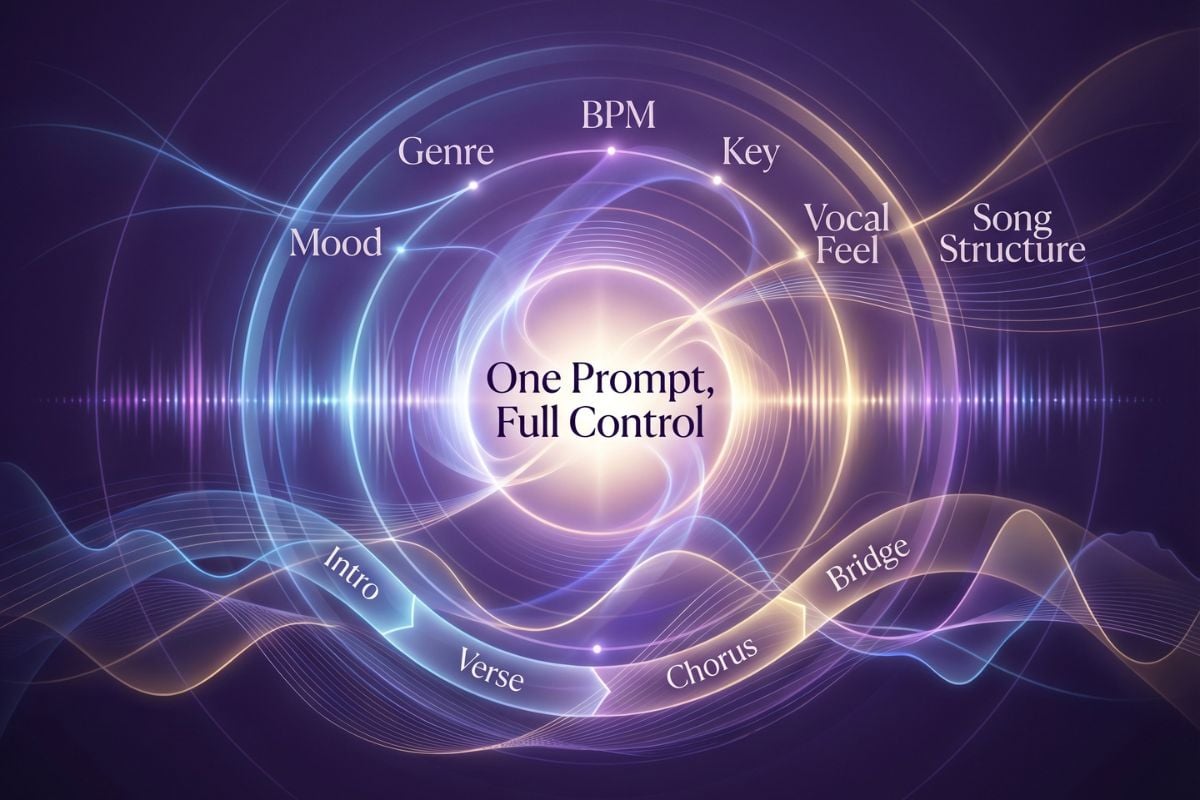
quick generation of MiniMax Music 2.6

Longer Songs With Real Structure

MiniMax Music 2.6 is not limited to short musical sketches. It can generate longer tracks and respond to structure cues like intro, verse, chorus, bridge, and outro, so the result feels more like a complete song with direction and progression. That makes it much more useful when you want music that already sounds shaped, not just started.
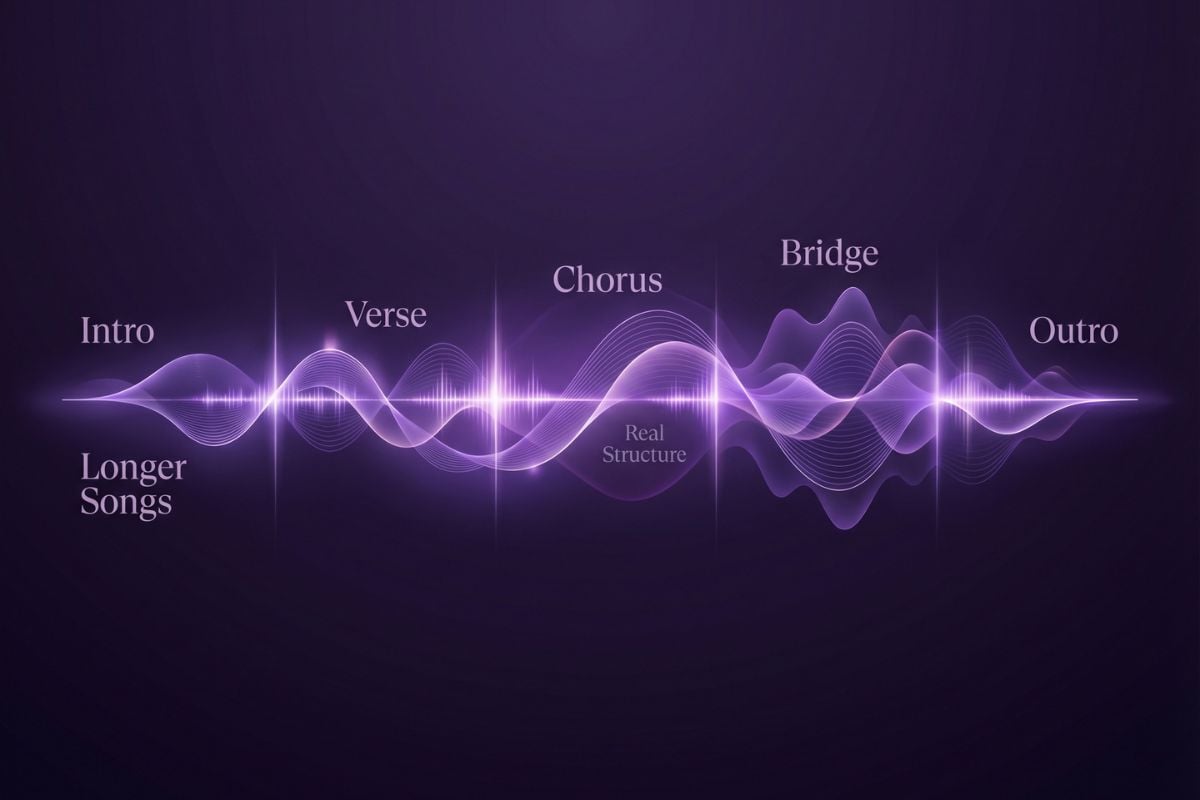
Longer Songs With Real Structure of MiniMax Music 2.6

MiniMax Music 2.6 Prompt Tips

1

Start With Genre, Mood, And Energy

A strong MiniMax Music 2.6 prompt usually starts with the sound you want. For example: upbeat pop, bright female vocal, glossy synths, catchy chorus, summer road trip.

2

Use Short Style Phrases That Sound Musical

Simple style phrases often work better than abstract hype. Try tags like EDM, synth, drop; lo-fi, chill, vinyl; punk, distorted, raw; or cinematic, orchestral.

3

Add Lyrics Only When They Help The Result

If you already have a hook or chorus idea, add lyrics. If not, keep the prompt focused on sound, pacing, and atmosphere. This usually leads to a cleaner first generation.

4

Refine The Second Prompt, Not The First One

Use the first result to learn what is missing. Then sharpen the next prompt with clearer vocal type, instrument choices, tempo feel, or emotional direction.

Key strengths that matter in real use

Why Choose MiniMax Music 2.6

Full Songs Or Instrumentals

MiniMax Music 2.6 gives you a clearer choice from the start. You can create a full vocal song when you need a complete track, or switch to instrumental mode for background music, intros, transitions, and cleaner audio beds.

Control BPM, Key, And Mood

This model is more useful when you want to guide the music instead of leaving everything to chance. You can shape the result with direction around BPM, key, genre, mood, and overall energy, which makes the output feel more intentional.

Works With Song Structure Cues

MiniMax Music 2.6 responds well to structure ideas like intro, verse, chorus, bridge, and outro. That helps the music feel more complete and better organized, instead of sounding like a short unfinished sketch.

Prompt Friendly Without Studio Jargon

You do not need to write like a producer to get useful results. Plain language, simple style tags, and direct mood cues are often enough to describe the kind of song or instrumental you want.

Useful For Real Creator Output

MiniMax Music 2.6 fits practical creator tasks well, including social clips, teaser music, product promos, event warm-ups, concept demos, and other content that needs music quickly.

Good For Fast Repeat Testing

The workflow makes it easy to generate a first version, adjust the prompt, and try again without too much friction. That is especially helpful when you want to compare different moods, vocal directions, or arrangement ideas.

MiniMax Music 2.6 Vs Lyria 3, Suno v5.5, And Mureka V7.5

ModelMain StrengthWhat It Focuses OnBest For
MiniMax Music 2.6Prompt-first song generation with support for full songs, instrumental-only output, and optional lyric generation.Turning a simple prompt or lyrics idea into a usable song faster, with a smoother workflow for both vocal and instrumental creation.Creators who want fast music output with clear prompt control and a lower learning curve.
Lyria 3High-fidelity music generation with strong prompt responsiveness, plus support for instrument and vocal-oriented prompting.Creative exploration, detailed prompting, and shaping genre, tempo, instruments, and dynamics with more musical nuance.Users who care about richer musical detail, experimentation, and more refined prompt-driven generation.
Suno v5.5A more personalized music workflow built around Voices, Custom Models, and My Taste.Making generated songs feel more like your own sound through voice input, catalog-based personalization, and taste learning.Creators who want a broader consumer music ecosystem and stronger personalization around their own style.
Mureka V7.5Stronger melody and arrangement quality, more realistic vocals and instruments, and streaming playback while music is generated.Balancing music quality and generation efficiency, especially when users want to hear results as they are being created.Users who want polished song output, more realistic sound, and a workflow that feels efficient during generation.
Frequently Asked Questions

FAQs of MiniMax Music 2.6

What is MiniMax Music 2.6 best for?

MiniMax Music 2.6 works especially well for fast music creation when you need a usable result quickly. That includes short video tracks, concept songs, instrumentals, promo music, and first-pass creative drafts.

How do I use MiniMax Music 2.6 on GoEnhance?

Open the AI Music page, choose MiniMax 2.6, decide whether you want Song or Instrumental, enter your prompt and optional lyrics, then click Generate.

How should I write a good MiniMax Music 2.6 prompt?

Keep it simple and musical. Start with genre, mood, energy, and voice or instrument cues. For example: uplifting pop, warm male vocal, punchy drums, bright synths, catchy chorus.

Can MiniMax Music 2.6 make instrumentals only?

Yes. MiniMax Music 2.6 instrumental generation is useful when you need background music, intros, transitions, or cleaner audio beds without vocals.

What is the difference between MiniMax Music 2.6 and MiniMax Music 2.6 cover?

MiniMax Music 2.6 is the main model for generating a new track from your prompt and optional lyrics. MiniMax Music 2.6 cover is better when you want to restyle existing musical material into a new voice, mood, or arrangement.

Is MiniMax Music 2.6 good for non-musicians?

Yes. One reason this model stands out is that the workflow is easy to understand. You can get useful results with simple prompts, style tags, and a few clear creative directions.

Is it safe to use cover workflows with any song?

You should only upload audio you own or are clearly allowed to use. Even if a model can transform music, that does not automatically give you rights to use the original recording, melody, or performance.

Create With MiniMax Music 2.6 Now

Open AI Music, choose MiniMax 2.6, enter your idea, and generate a song or instrumental in a cleaner workflow. It is a fast way to test music ideas and turn them into real content.

Start AI Music