Craiyon AI Review: Features, Pricing, Pros and Cons
- 1. Craiyon AI Review Verdict: Is It Worth Using?
- 2. What Is Craiyon AI?
- 3. How to Use Craiyon AI: Step-by-Step Guide
- 4. Craiyon AI Features Review
- 5. Craiyon AI Output Quality: What It Does Well and Where It Fails
- 6. Craiyon AI Pricing and Edit Credits
- 7. Free vs Paid: Which Craiyon Plan Should I Choose?
- 8. Commercial Use, Attribution, and Privacy Rules
- 9. Does Craiyon Have an API?
- 10. Craiyon AI Pros and Cons
- 11. Craiyon AI Alternatives: When Should I Use Another Tool?
- 12. Tips for Better Craiyon AI Results
- 13. GoEnhance AI: Best Alternative to Craiyon AI
- 14. FAQ
- 14.1 Is Craiyon AI free?
- 14.2 Is Craiyon the same as DALL·E mini?
- 14.3 Does Craiyon use credits?
- 14.4 Can I use Craiyon images commercially?
- 14.5 Are Craiyon images private?
- 14.6 Does Craiyon have a mobile app?
- 14.7 Does Craiyon have an API?
- 14.8 Is Craiyon good for logos?
- 14.9 Is Craiyon good for realistic images?
- 14.10 What is the best use case for Craiyon?
- 14.11 Is GoEnhance AI better than Craiyon AI?
- 15. Conclusion: Should I Use Craiyon AI?
Craiyon AI is worth using if you want a simple browser-based image generator for quick ideas, memes, rough visuals, prompt testing, or casual creative work. I would not use it as my first choice for final brand assets, realistic product images, consistent characters, private client drafts, or production-ready commercial visuals. The safest way to judge Craiyon is by use case: use the free version for fast text-to-image experiments, consider a paid plan only if you need no watermarks, HD downloads, more edit credits, no attribution, or private images, and always check the current pricing and Terms before publishing anything commercially. Craiyon Pricing
1. Craiyon AI Review Verdict: Is It Worth Using?
My short verdict is simple: Craiyon is useful for fast ideation, but limited for polished production. I would use it when I need quick image directions, funny concepts, moodboard ideas, or rough blog visuals, not when I need strict visual consistency or a final client-ready image.
The biggest advantage is accessibility. Craiyon lets users generate images from text prompts, and text-only generation does not use edit credits according to its official pricing FAQ. That makes it a practical starting point for people who want to test image ideas without committing to a full production workflow. Craiyon Pricing
The biggest limitation is output control. Craiyon can generate interesting results, but it may struggle with hands, faces, accurate text, complex layouts, product realism, and brand consistency. If I were creating paid ad assets, ecommerce images, or a logo system, I would treat Craiyon as an idea tool rather than a final design tool.
For paid use, I would check three details before subscribing: whether I need private images, whether I need edit credits for Retouch or image input, and whether the current plan removes watermarks and attribution. Craiyon’s official pricing page separates Supporter, Professional, and Ultra by edit credits, privacy, priority access, watermarks, attribution, HD downloads, and other subscription benefits. Craiyon Pricing
2. What Is Craiyon AI?
Craiyon is a text-to-image AI tool that turns written prompts into generated images. The official FAQ describes Craiyon as an AI art generator that transforms text descriptions into images and offers both free and paid tiers. Craiyon
Craiyon is also connected to the older name DALL·E mini. The official FAQ says Craiyon started as DALL·E mini in 2021 and rebranded to Craiyon in 2022. This matters because many older reviews, tutorials, and screenshots still talk about DALL·E mini, which can make the current product feel confusing. Craiyon
2.1 Craiyon as a Text-to-Image Generator
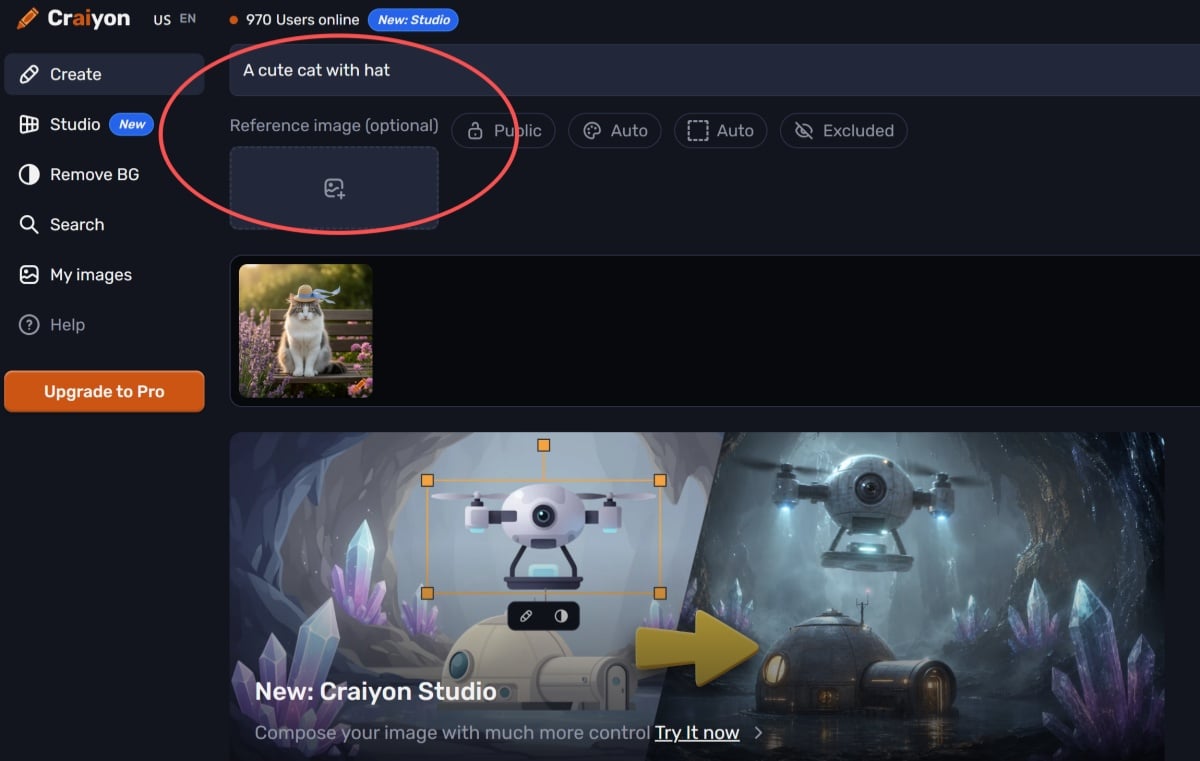
Craiyon’s core workflow starts with a text prompt. I enter a description, choose a visual direction, generate images, then decide whether to download, regenerate, retouch, or explore similar ideas.
The current Craiyon interface includes reference image input, Excluded, Draw, Inspirations, Recents, Retouch, Studio, Remove BG, Search, and My Images. These features make the product more than the old “type a joke prompt and get weird images” tool that many people remember from early DALL·E mini days. Craiyon
2.2 From DALL·E Mini to Craiyon
I would not judge Craiyon only by old DALL·E mini articles. The product has changed since its early viral period, and the current website now highlights subscription plans, Retouch, background removal, style presets, aspect ratio options, and higher-quality paid generation. Craiyon Tutorial
Older tutorials are still useful for understanding the basic prompt-to-image concept. They are less useful for pricing, edit credits, privacy, commercial use, or API status, because those details should come from current official pages.
3. How to Use Craiyon AI: Step-by-Step Guide
The basic Craiyon workflow is: open the official website, enter a prompt, choose a style, choose a format, use Exclude if needed, generate images, then download or edit the result. Craiyon’s own FAQ describes the process as typing an idea, choosing a style, picking an aspect ratio, drawing the image, and refining the result. Craiyon
| Step | Action | What I Check |
|---|---|---|
| 1 | Open Craiyon | I use the official website, not a random clone |
| 2 | Enter a prompt | I describe the subject, scene, style, and mood |
| 3 | Choose a style | I select Artistic, Photo, Anime, Illustration, Vector, or Raw |
| 4 | Choose a format | I check Square, Portrait, or Landscape options |
| 5 | Use Exclude | I add things I do not want in the image |
| 6 | Generate images | I compare outputs instead of trusting one result |
| 7 | Download or edit | I check watermark, HD download, Retouch, and credits |
3.1 Start from the Official Craiyon Website
I would start from the official Craiyon website because search results can include old tutorials, unofficial wrappers, and unrelated tools using similar names. The direct interface is the safest place to check the current product experience. Craiyon
On the official site, I would look for Create, Studio, Remove BG, Search, My Images, login, and sign-up options. These navigation items help confirm that I am using the current Craiyon product rather than an outdated DALL·E mini demo. Craiyon Tutorial
3.2 Write a Clear Text Prompt
A good Craiyon prompt should describe one clear scene. I usually include the subject, setting, visual style, lighting, composition, and mood.
A weak prompt would be: “cool dog image.” A stronger prompt would be: “a golden retriever sitting in autumn leaves, warm afternoon light, soft background, realistic photo style.” The second version gives the model more concrete details to follow.
3.3 Choose a Style Preset
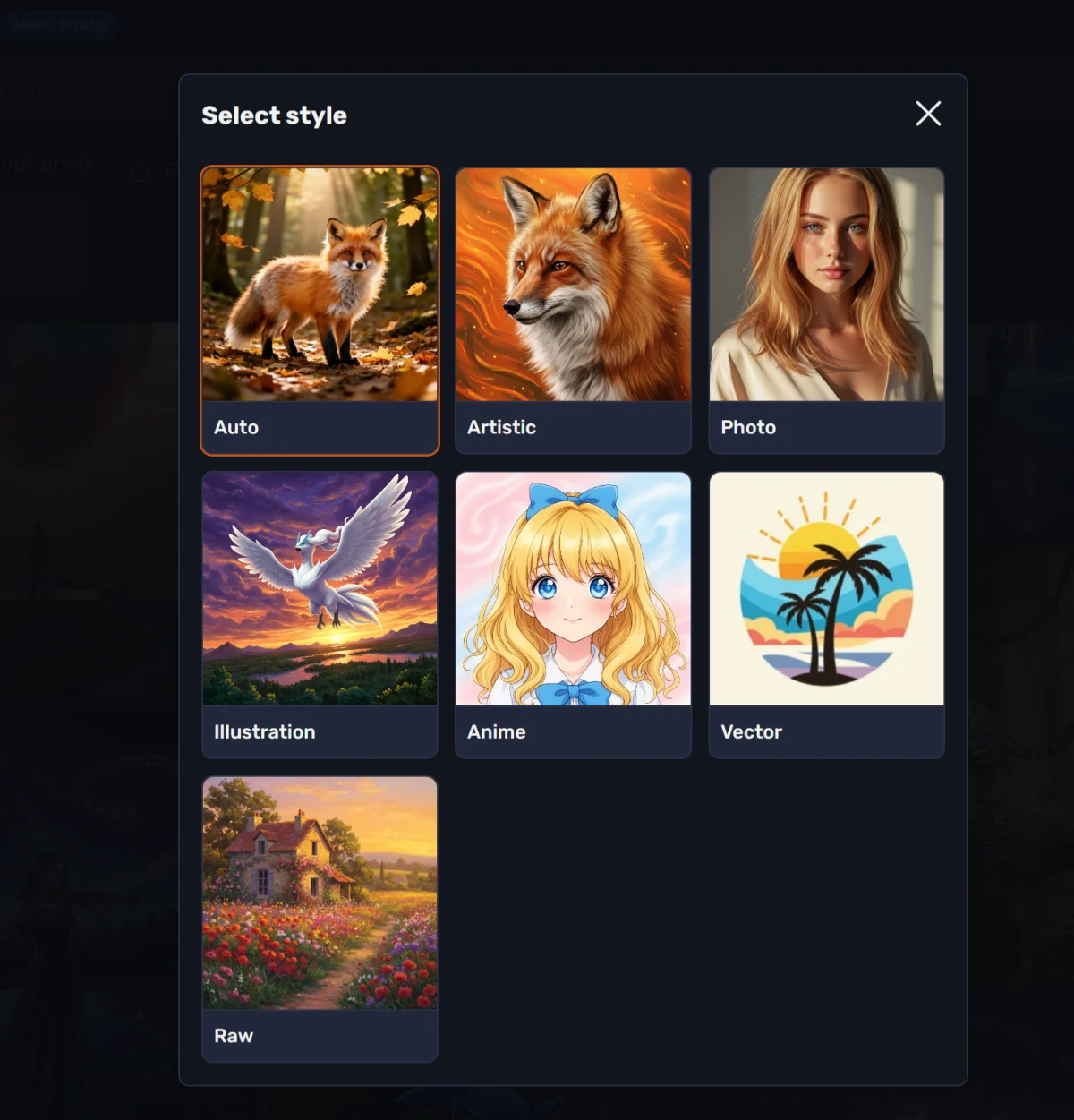 Craiyon currently lists six style presets: Artistic, Photo, Anime, Illustration, Vector, and Raw. I would choose the preset based on the final use case, not just personal taste. Craiyon
| Style | How I Would Use It |
|---|---|
| Artistic | Concept art, posters, expressive images |
| Photo | Realistic attempts, lifestyle-style images |
| Anime | Anime-inspired characters or scenes |
| Illustration | Editorial, children’s book, or drawn styles |
| Vector | Cleaner shapes and graphic-style concepts |
| Raw | More direct prompt interpretation with less style guidance |
3.4 Select the Right Aspect Ratio
Craiyon supports Square, Portrait, and Landscape formats, and its pricing FAQ says paid subscriptions unlock all aspect ratios as part of the premium feature set. Craiyon Pricing
Square works for thumbnails, profile-style visuals, and simple social posts. Portrait works better for characters, mobile layouts, and vertical content. Landscape is usually better for blog headers, scene illustrations, and wide hero visuals.
3.5 Use the Exclude Field
The Exclude field is Craiyon’s negative prompt-style control. Craiyon explains that users can use this field to specify concepts they do not want in the image, such as people, text, or colors. Craiyon
For example, if I want a clean product-style background, I might exclude “people, text, clutter, blurry.” If I want a cyberpunk image without the typical neon-rain look, I might exclude “rain, purple, pink, neon.” This does not guarantee a perfect result, but it gives the model a clearer direction.
3.6 Review, Download, Retouch, or Regenerate
After generation, I would compare the results before downloading anything. Craiyon can produce one interesting image and several weaker ones from the same prompt, so selection matters.
If the result is close but not finished, I would consider Retouch. Craiyon’s tutorial says image actions can include Download, Retouch, using an image as input for a new generation, removing the background, sharing, and viewing similar images. Craiyon Tutorial
4. Craiyon AI Features Review
Craiyon’s feature set is stronger than many older reviews suggest. I would review it as a simple image-generation workspace with text generation, prompt controls, editing, upscaling, animation, background removal, and discovery features.
| Feature | What It Does | Best For | What I Check |
|---|---|---|---|
| Text-to-Image | Generates images from prompts | Fast ideas and drafts | Output consistency |
| Style Presets | Guides visual direction | Matching a general look | Whether the style fits the use case |
| Exclude | Avoids unwanted elements | Cleaner prompts | It may not remove everything |
| Retouch | Edits an image with text commands | Small changes and revisions | Edit-credit usage |
| Upscale | Improves output size or quality | Better downloads | Plan availability |
| Animate | Adds motion-style output | Social experiments | Credit and plan rules |
| Remove BG | Removes background | Simple cutouts | Edge quality |
| Search | Explores community creations | Prompt inspiration | Public image visibility |
4.1 Text-to-Image Generation
Text-to-image generation is the main reason I would use Craiyon. I can enter a prompt and quickly see visual directions without setting up a complex design workflow.
The key pricing detail is that text-only generation does not use edit credits. Craiyon says credits are used for editing images with its higher-quality models, while generating from a text prompt without image input does not require credits. Craiyon
4.2 Style Presets and Prompt Control
Style presets help steer the output, but they do not replace a detailed prompt. I would use the preset as the broad visual category and the prompt as the actual creative instruction.
For example, “Photo” can help when I want a more realistic look, but I still need to describe the camera angle, lighting, subject, and background. “Vector” can help for graphic-style ideas, but I still need to specify shapes, colors, and layout.
4.3 Exclude and Negative Prompt Control
The Exclude field is one of Craiyon’s most practical controls. I would use it whenever the model keeps adding unwanted visual elements.
Common excluded terms include “text,” “people,” “extra hands,” “blurry,” “watermark,” “dark background,” or unwanted colors. This feature is useful, but I would not expect it to behave like precise manual editing.
4.4 Retouch and Image Editing
Retouch is the feature I would use when the first image is close but needs a specific change. Craiyon’s tutorial describes Retouch as image editing through text commands and lists examples such as changing clothing color, removing objects, changing scenery, adding text, or changing format. Craiyon Tutorial
The important cost detail is that Retouch uses edit credits, so I would not use it casually without checking my remaining credits. Craiyon Pricing
4.5 Upscale, Animate, and Background Removal
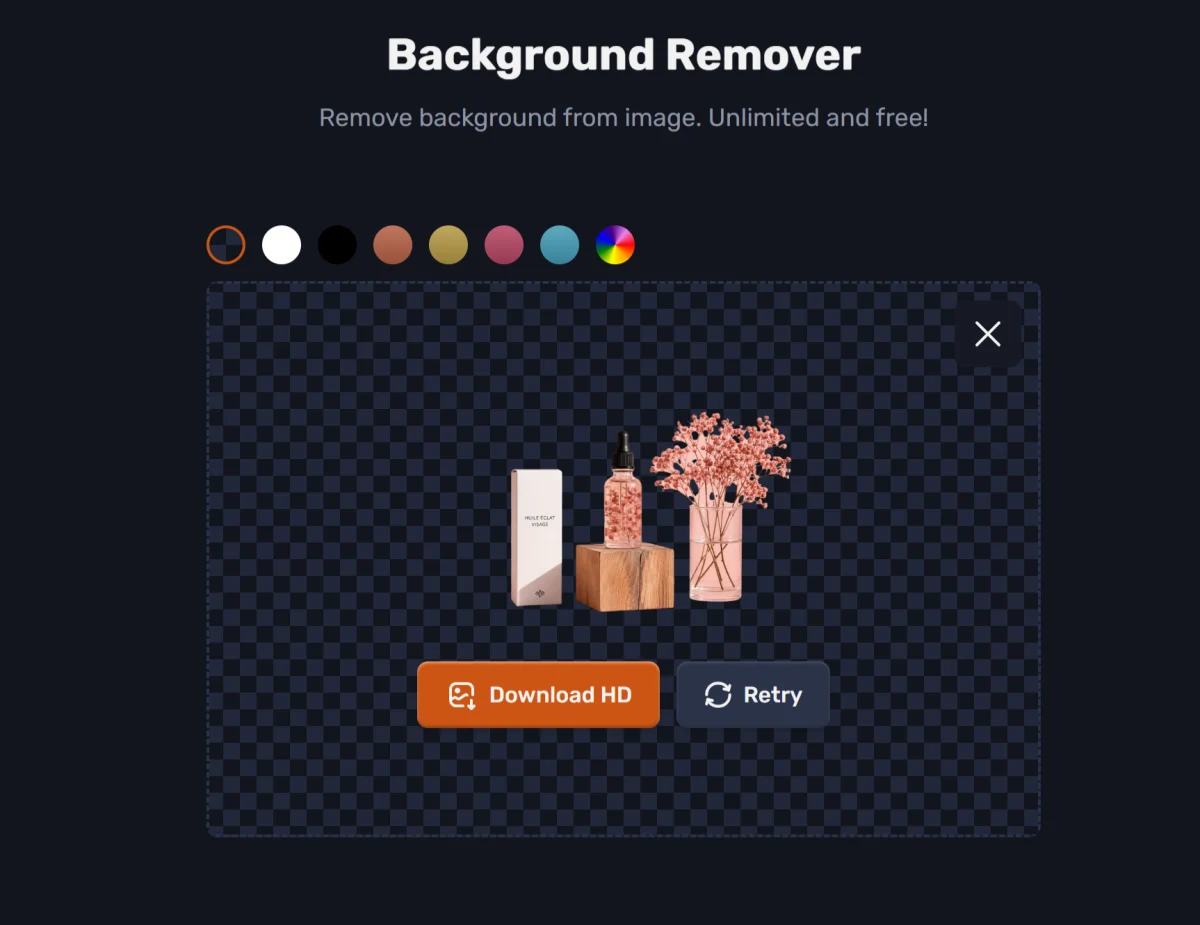 Upscale, Animate, and Remove BG are useful add-ons, but I would treat them as supporting tools rather than the core reason to use Craiyon. Craiyon’s pricing page lists Animate and Upscale as paid-plan benefits, while its tutorial navigation includes Remove BG as a product feature. Craiyon Pricing
Before relying on these features, I would check plan access, credit usage, export quality, watermark rules, and whether the output is good enough for the intended platform. For commercial work, I would also check privacy and attribution rules before publishing.
5. Craiyon AI Output Quality: What It Does Well and Where It Fails
Craiyon works best when the goal is speed, not precision. I would use it to explore visual directions, but I would not expect every output to be accurate, realistic, or ready to publish.
The strongest use cases are casual art, memes, thumbnails, blog concept images, visual brainstorming, moodboards, and quick prompt testing. The weaker use cases are photorealistic humans, consistent characters, accurate hands, readable text, product images, brand assets, and controlled layouts.
5.1 Good for Fast Visual Ideas
Craiyon is useful when I want to see many possible visual directions quickly. It can help me move from a vague idea to a rough visual concept without opening a professional design tool.
For example, I might use it to test “retro robot in a supermarket,” “minimalist desert house at sunset,” or “anime-style city cafe in the rain.” Even if the final image is imperfect, the result can help me decide what style, mood, or composition to pursue.
5.2 Weaker for Professional Visual Control
Craiyon is less reliable when I need exact visual control. I would be careful with any use case that requires accurate typography, clean hands, realistic faces, product proportions, brand colors, or repeated character identity.
This matters for business use. A rough blog illustration can tolerate small flaws, but an ad creative, product hero image, or client campaign usually needs higher consistency and more editing control.
5.3 Test Paid Quality Before Using It for Work
Craiyon says paid plans provide access to its highest-quality model, priority processing, no watermarks, HD downloads, and other premium features. Craiyon Pricing
A paid plan can improve the workflow, but it does not automatically make every image production-ready. I would compare outputs using the exact image type I need: people, products, text, logos, backgrounds, or brand-style visuals.
6. Craiyon AI Pricing and Edit Credits
Craiyon pricing should be checked on the official pricing page before subscribing because third-party reviews often show older or conflicting prices. The official yearly pricing page currently lists Supporter at $120 billed yearly, Professional at $240 billed yearly, and Ultra at $840 billed yearly. Craiyon Pricing
The most important cost rule is that text-only generation does not use edit credits. Retouch and image input use edit credits. Credits refresh monthly and do not roll over. Craiyon Pricing
| Plan | Official Yearly Billing | Edit Credits | Key Benefits | Privacy |
|---|---|---|---|---|
| Free | $0 | Not plan-based | Basic generation, possible wait times and watermarks | I would assume public-facing use |
| Supporter | $120 billed yearly | 100 | Unlimited images, Animate, Upscale, no watermarks, no attribution, HD downloads | Generated images are public |
| Professional | $240 billed yearly | 220 | Supporter benefits, priority queue, early access | Private images |
| Ultra | $840 billed yearly | 900 | More credits, priority queue, early access | Private images |
6.1 Free Generation vs Edit Credits
I would separate free generation from edit-credit usage. Craiyon’s official pricing FAQ says generating images from text only, without image input, does not use credits. Craiyon Pricing
Edit credits are used when I Retouch an image or use an image as input. That means the free or low-cost value of Craiyon depends on how much I only generate from text versus how often I edit existing images.
6.2 Paid Plan Benefits
The main reasons to pay are no watermarks, no attribution, HD downloads, access to higher-quality models, more edit credits, priority processing, and privacy on higher plans. Craiyon Pricing
Supporter is more suitable if I mainly want no-watermark downloads and a limited number of edit credits. Professional and Ultra make more sense if I care about private images, more credits, priority access, or heavier editing.
6.3 Refunds and Credit Renewal
I would review refund and renewal rules before paying. Craiyon says sales are non-refundable on its pricing page, and its Terms state that subscriptions and one-time credit purchases are final and non-refundable. Craiyon Terms
Credits refresh monthly on the billing date. They do not roll over, so unused credits should not be treated like a permanent balance. Craiyon Pricing
7. Free vs Paid: Which Craiyon Plan Should I Choose?
I would start with free Craiyon unless I already know I need paid features. The free route is enough for testing prompts, checking output quality, and deciding whether Craiyon fits my image style.
| User Type | Plan I Would Consider | Reason |
|---|---|---|
| Casual user | Free | Good for prompt testing and rough ideas |
| Blogger or social creator | Supporter | No watermark, HD downloads, no attribution |
| Small business or client work | Professional | Private images and more edit credits |
| Heavy editing user | Ultra | More credits and priority benefits |
7.1 Use Free Craiyon for Casual Testing
I would use the free version for learning prompts, generating memes, exploring visual styles, and testing whether Craiyon understands my image ideas. This is the lowest-risk way to evaluate the tool.
The free version is less suitable if I need clean commercial exports. Free users may face watermarks, wait times, and attribution requirements for commercial use. Craiyon Pricing
7.2 Choose Supporter for No-Watermark Downloads
I would consider Supporter if I like Craiyon’s output and mainly want cleaner downloads. The current official plan lists 100 edit credits, no watermarks, no attribution, HD downloads, Animate, and Upscale. Craiyon Pricing
The main limitation is privacy. The Supporter plan page says generated images are public, so I would not use this plan for confidential brand drafts or unreleased client concepts. Craiyon Pricing
7.3 Choose Professional or Ultra for Privacy and More Credits
I would look at Professional or Ultra if privacy matters. Professional currently lists private images, 220 edit credits, priority queue, and early access to new features. Ultra lists private images and 900 edit credits. Craiyon Pricing
For client work, unreleased campaigns, or private concepts, privacy is not a small detail. I would not upload or generate sensitive ideas without checking whether the plan keeps images private.
8. Commercial Use, Attribution, and Privacy Rules
Commercial use is allowed under Craiyon’s Terms, but I would not treat that as a blank permission for every image. Craiyon defines Commercial Use as a use case intended to generate direct or indirect financial gain, and it says commercial use must remain consistent with its Code of Conduct and Terms. Craiyon Terms
The clearest commercial-use distinction is attribution. Craiyon says free users must credit Craiyon when using images commercially, while subscribers can use images without attribution. Craiyon Pricing
| Use Case | Free User | Subscriber |
|---|---|---|
| Personal use | Allowed under Terms | Allowed under Terms |
| Commercial use | Allowed, but credit Craiyon | Allowed without attribution |
| Watermark-free output | Not the main free benefit | Included in paid plans |
| Private images | Not the main free benefit | Professional and Ultra |
| IP risk check | Still required | Still required |
8.1 Commercial Use Is Allowed, But I Still Check the Terms
I would check the Terms before using Craiyon images in ads, client work, paid content, merchandise, or brand campaigns. Commercial use depends on following the full Terms, not just seeing the phrase “commercial use.” Craiyon Terms
I would especially check restricted content, third-party IP risk, misleading uses, watermark rules, attribution rules, and whether the image includes recognizable brands, characters, public figures, or copyrighted visual elements.
8.2 Free Users Need Attribution
If I use Craiyon as a free user for commercial purposes, I need to credit Craiyon. Craiyon’s Terms say non-subscribers must credit Craiyon in text accompanying commercially used images, and if text cannot accompany the image, placing the Craiyon logo in the corner can serve as attribution. Craiyon Terms
This is easy to miss. Some third-party reviews say commercial use is allowed, but they do not always explain the free-user attribution rule clearly.
8.3 Privacy Depends on the Plan
I would check privacy before generating business ideas. The official pricing page lists Supporter generated images as public, while Professional and Ultra include private images. Craiyon Pricing
This matters if I am working on client concepts, unreleased campaigns, product ideas, internal brand visuals, or any prompt that should not be visible in a public or community-facing context.
8.4 User Responsibility and IP Risk Still Matter
Craiyon’s Terms say users are solely responsible for their use of generated images, and whether an image infringes another party’s intellectual property rights depends on the specific image and the specific use. Craiyon Terms
For business publishing, I would review images for brand names, characters, logos, recognizable people, copyrighted styles, and misleading claims. If the image will be used in a high-risk commercial context, I would not rely on a casual AI output without legal or editorial review.
9. Does Craiyon Have an API?
Craiyon does not currently have a public API according to its official pricing FAQ. I would not treat third-party wrappers, old DALL·E mini demos, or unofficial automation tools as official Craiyon API access. Craiyon Pricing
This is important for developers. If I need a production image API, I would verify endpoint access, authentication, pricing, rate limits, data handling, output rights, model version, and service reliability from the actual provider.
9.1 Official API Status
The direct answer is no: Craiyon says it does not have a public API at the moment. The pricing FAQ also says one may be offered in the near future, but I would not build a workflow around a future promise. Craiyon Pricing
For now, I would treat Craiyon as a website-based tool. Any API-like route should be checked carefully for affiliation, terms, and reliability.
9.2 Third-Party API Wrappers Are Not Official Craiyon API
Third-party wrappers can be useful for experiments, but they are not the same as official API access. They may have different prices, limits, uptime, data policies, and commercial terms.
Before using any wrapper in a product, I would ask whether it is officially affiliated with Craiyon, whether it has permission to provide the service, and whether it provides clear output usage rights.
10. Craiyon AI Pros and Cons
Craiyon’s strengths are simplicity, free text generation, and quick visual exploration. Its weaknesses are inconsistent quality, limited professional control, privacy differences by plan, edit-credit limits, and no public API.
| Pros | Cons |
|---|---|
| Easy to start | Output quality can be inconsistent |
| Free text-only generation | Free users may face waits or watermarks |
| Useful for rough ideas | Not ideal for brand-consistent visuals |
| Style presets are easy to understand | Complex prompts may fail |
| Exclude field gives basic control | Negative control is not perfect |
| Retouch, Upscale, Animate, and Remove BG are available | Retouch and image input use edit credits |
| Paid plans remove watermarks and attribution | Supporter images are public |
| Commercial use is possible under Terms | Users still handle IP and usage risk |
| Beginner-friendly interface | No public API at the moment |
The main reason I would recommend Craiyon is speed. The main reason I would avoid it for serious work is control.
11. Craiyon AI Alternatives: When Should I Use Another Tool?
I would use another tool when the final image needs to be more accurate, private, editable, consistent, or production-ready. Craiyon is good for early ideas, but not always enough for professional workflows.
If I need accurate text, clean logos, product realism, model consistency, character continuity, advanced editing, team workflows, or API automation, I would compare Craiyon with more specialized AI image tools before committing.
11.1 Choose Craiyon for Fast Free Ideas
Craiyon is a good choice when I want to move quickly. It helps me test visual concepts without spending time setting up a complicated workflow.
I would choose it for prompt brainstorming, meme concepts, rough thumbnails, blog illustration ideas, moodboards, casual art, and early creative directions.
11.2 Choose Another Tool for Professional Production
I would choose another tool if I need final-grade control. This includes polished ad creatives, product photos, brand campaign images, consistent characters, typography-heavy graphics, private client work, or API-driven image generation.
In those cases, the tool needs to offer stronger consistency, clearer rights, higher export quality, and more predictable editing options.
12. Tips for Better Craiyon AI Results
Craiyon results improve when I give the model specific instructions. I would not rely on one vague prompt and expect a polished image.
The best workflow is to start with a clear scene, choose the right style preset, use Exclude to remove common problems, compare several outputs, then use Retouch only when the image is close enough to fix.
12.1 Write One Clear Scene per Prompt
I would keep each prompt focused on one main subject and one main action. When a prompt asks for too many unrelated details, the output usually becomes less predictable.
A practical prompt structure is: subject + action + setting + style + lighting + composition. Craiyon’s tutorial recommends adding details such as physical appearance, clothing, environment, lighting, and style to make prompts more specific. Craiyon Tutorial
12.2 Use Style Presets with Prompt Keywords
I would combine style presets with style keywords. The preset gives Craiyon a broad direction, while the prompt gives it specific details.
For a realistic attempt, I might choose Photo and include “natural light, 50mm lens, shallow depth of field.” For a clean graphic concept, I might choose Vector and include “flat shapes, limited color palette, simple background.”
12.3 Use Exclude to Remove Common Problems
I would use Exclude when unwanted elements appear repeatedly. Common exclusions include “text,” “extra fingers,” “blurry,” “people,” “logo,” “watermark,” or a color I do not want.
The Exclude field is not perfect. I treat it as a steering tool, not a guarantee.
12.4 Review Usage Rights Before Publishing
Before publishing, I would check whether the image is watermarked, whether attribution is required, whether the image is public or private, and whether the content creates IP or brand-safety risk.
This matters most for commercial use. A funny personal meme has a different risk level from a paid ad, product page, client design, or merchandise print.
13. GoEnhance AI: Best Alternative to Craiyon AI
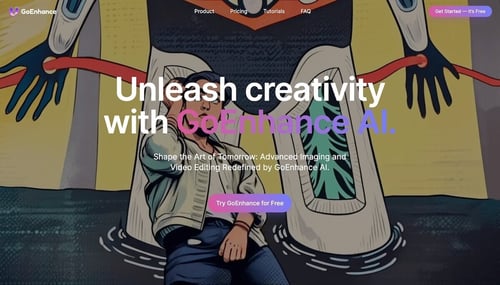
I would consider GoEnhance AI the better alternative to Craiyon AI when the goal is not only to generate a quick image, but to build a more complete creative workflow around image generation, image editing, and visual transformation. Craiyon is useful for fast prompt experiments, while GoEnhance AI is better suited for users who want to move from rough image ideas into more practical production-style workflows.
The clearest difference is workflow depth. Craiyon is mainly a browser-based text-to-image tool with useful extras like Retouch, Upscale, Animate, and Remove BG. GoEnhance AI gives creators a broader place to test visual creation and editing workflows, including an AI image generator path for creating new visuals and an image to image path for transforming or refining existing images.
| Use Case | Craiyon AI | GoEnhance AI |
|---|---|---|
| Quick prompt testing | Good for simple idea generation | Useful when the image is part of a larger creative workflow |
| Image editing | Retouch is available but uses edit credits | Better suited when users want a dedicated image transformation path |
| Creative workflow | Mainly text-to-image plus extra tools | Covers image generation, image editing, and broader visual workflows |
| Production direction | Best for rough drafts and casual concepts | Better for users who need more practical output paths |
| Best fit | Memes, moodboards, quick ideas | Creator workflows, visual drafts, image transformation, and reusable content |
I would still start with the same practical checks before using any AI image tool for public or commercial content. Users should review source rights, brand safety, likeness permissions, watermark rules, output quality, and whether the final image is appropriate for the intended use.
For me, the decision is straightforward. I would use Craiyon AI when I only need fast image inspiration. I would choose GoEnhance AI when I want a more flexible creative workspace for generating, editing, and transforming images beyond a basic prompt-to-image test.
14. FAQ
14.1 Is Craiyon AI free?
Yes. Craiyon can be used for free text-to-image generation, and text-only generation does not use edit credits. Craiyon
Paid plans add benefits such as higher-quality models, no watermarks, HD downloads, edit credits, no attribution, and privacy options on higher tiers. Craiyon Pricing
14.2 Is Craiyon the same as DALL·E mini?
Craiyon started as DALL·E mini in 2021 and rebranded to Craiyon in 2022. I would use the current Craiyon name when writing or searching for updated product information. Craiyon
Older DALL·E mini articles may still explain the basic concept, but they may not reflect current pricing, editing, privacy, or commercial-use rules.
14.3 Does Craiyon use credits?
Yes, but not for every action. Text-only generation does not use edit credits.
Edit credits are used when I Retouch an image or use an image as input. Credits refresh monthly and do not roll over. Craiyon Pricing
14.4 Can I use Craiyon images commercially?
Yes, Craiyon allows commercial use under its Terms. I would still check the Terms before using images in ads, client work, products, or paid content. Craiyon Terms
Free users must credit Craiyon when using images commercially. Subscribers can use images without attribution. Craiyon Pricing
14.5 Are Craiyon images private?
It depends on the plan. Supporter generated images are listed as public on the official pricing page.
Professional and Ultra include private images. I would choose one of those plans if the prompts or outputs are connected to client work, private projects, or unreleased campaigns. Craiyon Pricing
14.6 Does Craiyon have a mobile app?
The official FAQ says a Craiyon mobile app is coming soon. I would currently treat the website as the main access route. Craiyon
Before downloading any app using the Craiyon name, I would verify that it is official.
14.7 Does Craiyon have an API?
No. Craiyon’s official pricing FAQ says there is no public API at the moment. Craiyon Pricing
If I see a third-party Craiyon API wrapper, I would treat it as unofficial unless Craiyon clearly confirms the connection.
14.8 Is Craiyon good for logos?
Craiyon can help with rough logo ideas, but I would not use it as my final logo tool. Logos require clean shapes, accurate text, originality checks, export quality, and trademark review.
If I used Craiyon for logo brainstorming, I would rebuild the final design manually or in a professional design tool.
14.9 Is Craiyon good for realistic images?
Craiyon can create photo-style images, but I would not rely on it for high-end photorealistic production. It can still struggle with faces, hands, products, text, and complex compositions.
For realistic commercial images, I would compare the same prompt across several tools before choosing a final workflow.
14.10 What is the best use case for Craiyon?
The best use case is fast visual ideation. I would use Craiyon for prompt testing, memes, casual art, moodboards, rough blog visuals, and early creative directions.
I would not use it alone for final brand campaigns, confidential client drafts, production image APIs, or polished product visuals.
14.11 Is GoEnhance AI better than Craiyon AI?
GoEnhance AI is a better choice when I need more than casual image generation. I would choose it for broader image creation and editing workflows, especially when I want to generate, transform, or refine visuals in a more practical content workflow.
Craiyon AI is still useful for quick ideas. The better choice depends on whether I need fast inspiration or a more flexible image workflow.
15. Conclusion: Should I Use Craiyon AI?
I would use Craiyon AI if I need a simple, free, browser-based image generator for quick creative ideas. It is easy to start, useful for prompt experiments, and good enough for rough visual exploration.
I would upgrade only if I need specific paid benefits: no watermarks, HD downloads, no attribution, more edit credits, priority access, higher-quality models, or private images. Before paying, I would check the live pricing page because plan details and prices can change. Craiyon Pricing
I would not treat Craiyon as a complete professional design workflow. For commercial use, I would check attribution, privacy, watermark, IP risk, refund rules, and Terms before publishing. My final recommendation is to use Craiyon for fast ideas first, then move to a more controlled workflow when the image needs to be accurate, private, brand-safe, or production-ready. Craiyon Terms