
أفضل 10 أدوات لإزالة الخلفيات عبر الإنترنت في عام 2026
- TL;DR
- Quick Comparison Table
- How I Selected These Background Removers
- How I Choose an Online Background Remover
- 1. GoEnhance AI — For Photos and Illustrations
- 2. Photoroom — For Ecommerce Product Images
- 3. Adobe Firefly — For Free Removal and Further AI Editing
- 4. Canva — For Background Removal Inside a Design
- 5. Pixelcut — For Cutouts with Manual Refinement
- 6. Fotor — For Free Downloads and Photo Editing
- 7. Picsart — For Social Graphics and Creative Edits
- 8. Pixlr — For Browser Editing and Multiple Images
- 9. Erase.bg — For Uploads and Image URL Imports
- 10. Removal.AI — For Preview-First, Credit-Based Processing
- Feature Comparison Matrix
- Pricing Comparison
- Which Background Remover Should You Choose?
- FAQ
- What is the best online background remover in 2026?
- Which online background removers offer free downloads?
- Can I remove a background without reducing image dimensions?
- Which background remover supports anime illustrations?
- Can I remove backgrounds from several images at once?
- Why does my saved image still have a background?
- Conclusion
Removing a background is only half the job. The downloaded image still needs to look right in a product listing, a presentation, or a social post. A tool that handles a sneaker well may need help with loose hair, pet fur, or a reflective bottle.
I compared 10 online background removers by their editing options, download restrictions, and pricing. I put GoEnhance AI first for individual photos and illustrations. My other recommendations focus on catalog work, design layouts, or lower-cost downloads.
Updated October 8, 2026.
TL;DR
- GoEnhance AI: My first pick for individual photos and illustrations, with several background output options.
- Photoroom: I consider it when background removal is part of an ecommerce production workflow.
- Adobe Firefly or Fotor: I start here when a free standalone removal tool is the priority.
- Canva: I use it when the cutout belongs inside a design I am already making.
- Pixelcut, Picsart, Pixlr, Erase.bg, and Removal.AI: I compare these for refinement, creative editing, batch work, or credit-based access.
Quick Comparison Table
| Rank | Tool | Best fit | Main consideration |
|---|---|---|---|
| 1 | GoEnhance AI | Individual photos and illustrations | Processes one image per run |
| 2 | Photoroom | Ecommerce image production | Paid plans have export allowances |
| 3 | Adobe Firefly | Free removal followed by AI editing | Additional editing has separate access conditions |
| 4 | Canva | Cutouts inside layouts | Unlimited remover use is promoted with Pro |
| 5 | Pixelcut | Automatic cutouts with manual refinement | Free removal is limited |
| 6 | Fotor | Free downloads and follow-up photo editing | Check access before using other editor features |
| 7 | Picsart | Social graphics and creative compositions | Its remover FAQ describes a subscription trial |
| 8 | Pixlr | Browser editing and multiple-image removal | Check current usage and save limits |
| 9 | Erase.bg | Uploads and image URL imports | Three free credits after signup |
| 10 | Removal.AI | Preview-first, credit-based processing | Full-resolution downloads use credits |
How I Selected These Background Removers
I compared official product and pricing information for browser access, output options, editing controls, processing volume, and cost. I also distinguish quick cutout tools from editors designed to complete a larger project.
How I Choose an Online Background Remover
Start with the image you actually need to edit
Test a representative file. For portraits, inspect loose hair and shoulder edges. For products, check holes, handles, laces, and shadows. For pets, look at the transition between fur and background. An easy sample tells you little about a difficult job.
Check the downloaded file
A successful preview is not enough. Confirm the export dimensions, watermark status, and whether transparency survives the download. PNG supports transparency, but a PNG can still contain a solid background. For reusable cutouts, an AI PNG maker is another relevant tool to consider.
Separate occasional use from production work
For one profile photo, a signup allowance might be sufficient. For 200 product images, batch handling, export quotas, and consistent framing matter more. Calculate the cost of finished downloads rather than comparing subscription prices alone.
Decide what happens after removal
If the result goes straight into a poster, an integrated design editor can save an export-and-upload step. If you only need a transparent asset, a dedicated remover may involve fewer decisions.
1. GoEnhance AI — For Photos and Illustrations
Overview: GoEnhance AI's background remover offers Photo and Anime / illustration modes, plus transparent, white, or custom-color backgrounds. The product page specifies PNG output at the uploaded image's dimensions. That combination covers reusable cutouts and simple product backgrounds without requiring a full design project.
Best for: Creators preparing individual portraits, products, pets, or illustrated characters.
Pros: Choice of image modes; several background outputs; straightforward per-image token cost.
Cons: No batch processing at present.
Pricing: Four tokens per image. New accounts receive introductory tokens; ongoing use is not unlimited free processing.
Why I picked it: I like the practical output choices, and the examples below show how they apply to common image tasks.
Portrait: removing a distracting room
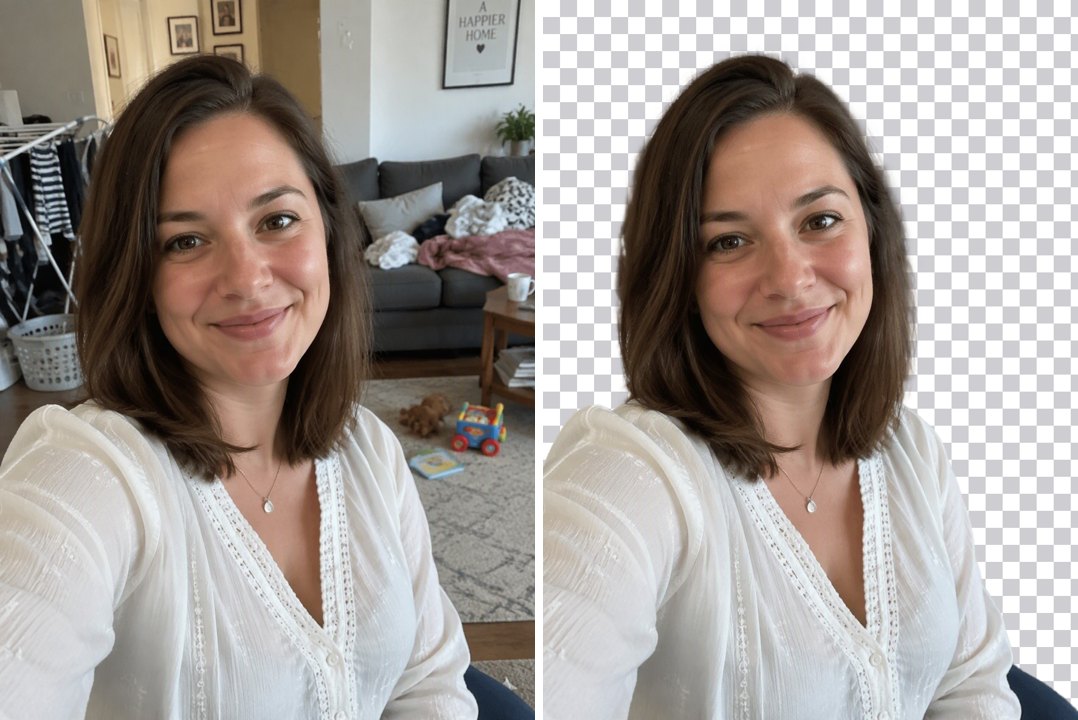
GoEnhance test example: original portrait on the left, background-removal preview on the right.
The room, furniture, and laundry disappear from the result while the woman's face, white blouse, and main hair outline remain visible. At this display size, the portrait appears separated from the busy scene. Fine strands would need closer inspection in the original output before a large-format use.
Sneaker: replacing an outdoor scene with white
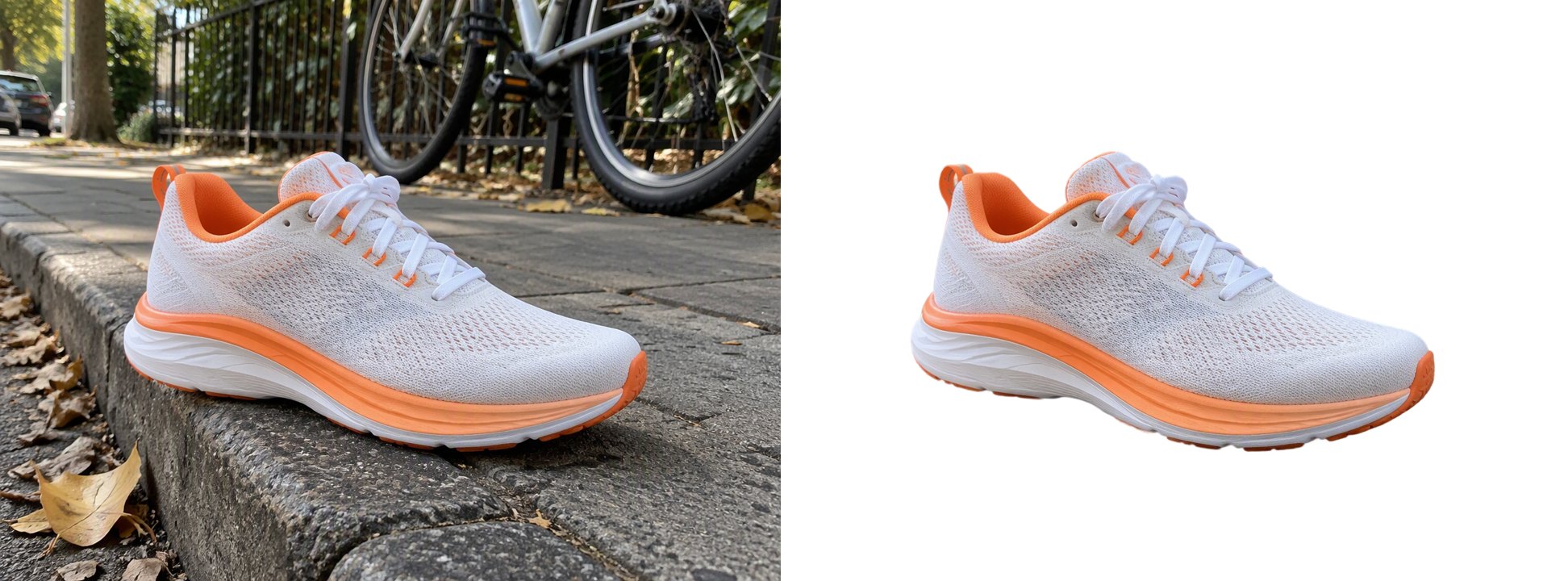
GoEnhance test example: the curb and street scene are replaced with a white background.
The shoe's laces, orange trim, and textured upper remain visible in the result. Removing the curb also removes the original setting that grounded the shoe. For a product listing, check the final crop and placement; for a lifestyle composition, consider whether it needs a new contact shadow.
Puppy: separating fur from a patterned rug
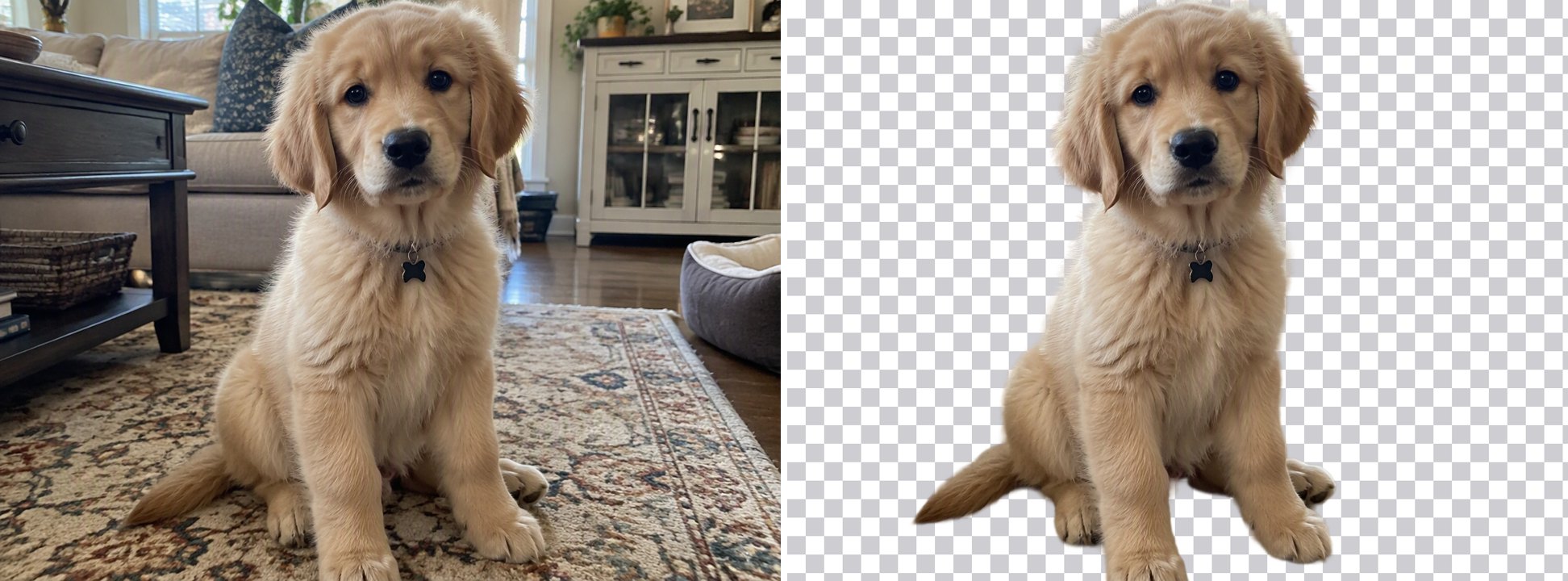
GoEnhance test example: the puppy is isolated from the rug and surrounding furniture.
I can see the puppy's ears, paws, tail, and collar in the cutout. The broad fur outline remains soft. I would place the PNG on both dark and light backgrounds to check for leftover fringes.
Dropper bottle: inspecting a reflective product
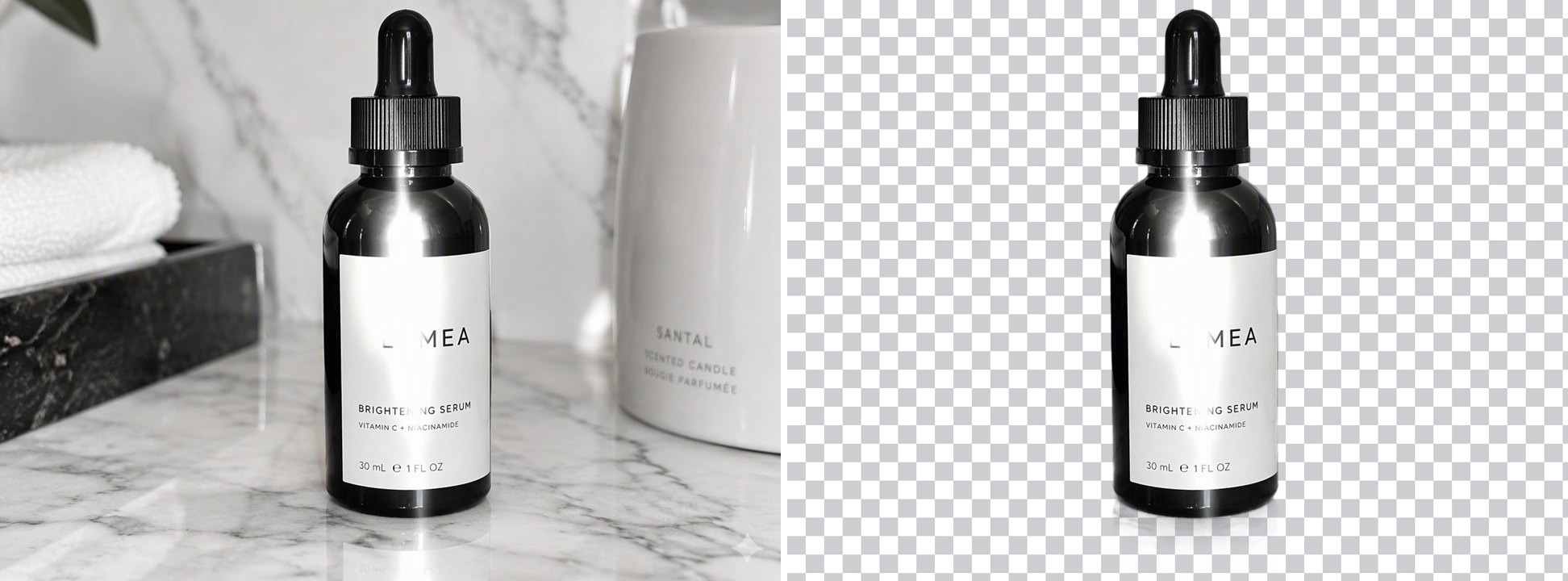
GoEnhance test example: a reflective bottle is separated from the countertop and surrounding objects.
I can still see the cap, bottle shape, label area, and bright surface highlight. A faint pale area appears beneath the base, so I would check that edge against the final background. For clear glass, I would inspect reflections and transparent edges closely.
2. Photoroom — For Ecommerce Product Images
Overview: Photoroom connects background removal with product-image editing, batch processing, and API workflows. Its appeal grows when the job involves a catalog rather than one isolated photograph.
For a seller, the practical question is how quickly a group of cutouts becomes a consistent set of finished images. Check that workflow alongside the removal itself.
Best for: Sellers and teams preparing recurring product imagery.
Pros: Product-focused editing; batch and automation routes.
Cons: Plan allowances still matter even when core tools are described as unlimited. An export quota can be the relevant bottleneck.
Pricing: A free entry point is available. The pricing page displayed Pro at $7.50 per month billed yearly, with 1,000 monthly exports when checked.
Why I picked it: It addresses the work around the cutout: preparing many images for a consistent catalog.
3. Adobe Firefly — For Free Removal and Further AI Editing
Overview: Adobe's online background remover currently presents the tool under Firefly, even though its URL retains the Express name. It provides free removal and PNG downloads, with options to continue editing in Firefly.
That makes it relevant when removing the original setting is the first step toward a different scene. Keep the distinction clear: downloading a cutout and generating a new environment are separate tasks.
Best for: Occasional cutouts and users interested in Adobe's subsequent editing tools.
Pros: Free standalone removal; PNG output; a route into further image editing.
Cons: Do not assume every downstream Firefly feature shares the remover's free access. Account and generation allowances can differ.
Pricing: Basic background removal is advertised as free; additional services depend on the feature and plan.
Why I picked it: It is a practical starting point when the immediate requirement is a downloadable cutout.
4. Canva — For Background Removal Inside a Design
Overview: Canva makes most sense when your image already belongs in a presentation, thumbnail, flyer, or social layout. Remove the background, adjust the cutout with erase-and-restore controls, and continue arranging the design.
The time saved comes from staying in the same project. That is particularly useful when the final deliverable contains text and several visual elements.
Best for: Existing Canva users and people making complete layouts.
Pros: Integrated design workflow; manual erase-and-restore adjustment.
Cons: Its broader editor can feel unnecessary for a single download. Confirm both remover access and the transparent-background export option in your account.
Pricing: Canva promotes Pro for unlimited background-remover use. Check regional pricing and your existing plan's entitlements.
Why I picked it: For layout work, avoiding a separate application can matter more than small differences in the upload process.
5. Pixelcut — For Cutouts with Manual Refinement
Overview: Pixelcut combines automatic removal with a Refine brush for adjusting edges. That second step is valuable when the automatic result is close but misses a small area.
Before processing a whole set, try an image with an awkward detail: a bag handle, a gap between laces, or an edge that blends into the background. See whether the correction is manageable.
Best for: Users who want automatic processing with a manual cleanup option.
Pros: Refine control; free exports without a watermark are listed on its pricing page; paid batch access.
Cons: Free background removal is limited. Paid batch exports also have quotas.
Pricing: The annual Pro option displayed an equivalent $8 per month, including 1,000 monthly batch exports.
Why I picked it: A correction tool can be more useful than repeatedly submitting the same difficult image and hoping for a different result.
6. Fotor — For Free Downloads and Photo Editing
Overview: Fotor's background remover advertises free HD downloads without a watermark or signup. Its page also describes a brush for erasing or restoring areas and the option to continue editing with backgrounds, text, and effects.
Those terms make it worth checking before paying for a simple one-off download. They apply to the advertised remover, however, rather than proving that every tool in Fotor's wider editor is free.
Best for: Occasional users who want a cutout and some follow-up editing.
Pros: Clearly advertised free download access; manual correction; several supported input formats.
Cons: Check access conditions if you move into other tools or premium assets.
Pricing: The standalone remover advertises free HD output. Optional editor upgrades are separate.
Why I picked it: Its download offer directly addresses a common frustration: finishing an edit and only then discovering a payment requirement.
7. Picsart — For Social Graphics and Creative Edits
Overview: Picsart combines cutouts with background replacements, colors, effects, and other creative editing tools. It suits projects where the isolated subject will become part of an expressive graphic.
A creator making a launch post may value these options more than someone who only needs a plain product PNG. Decide which kind of task you have before choosing a subscription.
Best for: Social posts, collages, and promotional compositions.
Pros: Multiple background treatments; creative assets and editing in the same ecosystem.
Cons: Its remover FAQ describes a seven-day subscription trial. Do not interpret a “free” headline as a promise of ongoing unrestricted use.
Pricing: Trial and paid subscription access. The pricing page displayed Pro at $14.99 per month billed yearly when checked.
Why I picked it: It offers a path from isolated subject to finished creative, especially when a plain background is not the desired result.
8. Pixlr — For Browser Editing and Multiple Images
Overview: Pixlr offers an online remover alongside its browser editors. Its remover description includes processing multiple images and downloading the results together.
That makes it a candidate for small sets of assets as well as single cutouts. Check the available controls and current limits with a few files before committing a larger job.
Best for: Users who prefer browser-based editing and want to explore multiple-image processing.
Pros: Online editing tools; batch removal described by the official tool page.
Cons: Free access should not be confused with unlimited access across the full suite. Save limits, advertising, and AI allowances deserve separate attention.
Pricing: A free remover is advertised. Pixlr Plus is listed at $2.49 monthly, or $1.99 per month with yearly billing, for broader account benefits.
Why I picked it: It provides another route for users whose work extends beyond one automatic cutout.
9. Erase.bg — For Uploads and Image URL Imports
Overview: Erase.bg accepts uploaded images and image URLs. Its signup allowance gives new users a small number of downloads to judge whether the results meet their needs.
URL input can reduce friction when an image you are authorized to use is already hosted online. For a local file, the standard upload route remains available.
Best for: Occasional edits and workflows involving hosted images.
Pros: File and URL input; a defined introductory download allowance.
Cons: Signup is required, and the free credits are finite. Its pricing page mixes package offers and broader plan language, so verify the actual checkout allowance.
Pricing: Three free credits and three downloads after signup. Paid credit packages are available; the page states one credit per background removal.
Why I picked it: It is straightforward to evaluate on a few real files before deciding whether a paid package makes sense.
10. Removal.AI — For Preview-First, Credit-Based Processing
Overview: Removal.AI pairs automatic removal with online editing and provides credit-based access to full-resolution output. Free previews let you inspect a result before committing to a paid download.
This model can suit users who can estimate their monthly image volume. Compare the package total with the number of usable outputs you expect, rather than relying on a prominently displayed per-image rate.
Best for: Users who want previews first and a defined download budget.
Pros: Free previews; monthly and one-time credit packages; follow-up editing.
Cons: Preview access is different from full-resolution export. Unused credits in its “Lifetime” package remain valid for three years.
Pricing: The monthly page displayed 100 credits for $5.99. One-time packages are also listed.
Why I picked it: It offers a distinct purchasing model for users who prefer budgeting by output volume.
Feature Comparison Matrix
| Tool | Output or editing options highlighted | Batch removal status |
|---|---|---|
| GoEnhance AI | Transparent, white, or custom-color PNG; photo and illustration modes | Not currently supported |
| Photoroom | Cutouts and product-image editing | Available; check plan allowances |
| Adobe Firefly | PNG cutouts and further Firefly editing | Not listed for the standalone remover |
| Canva | Cutouts, layouts, erase-and-restore controls | Not listed for the standard remover workflow |
| Pixelcut | Cutouts with a Refine brush | Paid batch access listed |
| Fotor | Transparent PNG, replacement backgrounds, correction brush | No batch feature listed |
| Picsart | Transparent output and creative background treatments | Bulk editing listed on paid plans; check the required operation |
| Pixlr | Cutouts and browser editing | Described on the remover page |
| Erase.bg | Cutouts, file uploads, and URL input | Offered; confirm package or enterprise terms |
| Removal.AI | Previews, full-resolution output, and online editing | Bulk-removal tool available |
Pricing Comparison
I checked the pages on October 8, 2026. The figures below reflect the prices shown at that time. Dollar amounts are the displayed USD prices; regional offers and taxes can differ. A monthly equivalent with annual billing requires an annual commitment.
| Tool | Free access | Paid reference or pricing model |
|---|---|---|
| GoEnhance AI | Introductory tokens for new accounts | 4 tokens per image |
| Photoroom | Free entry point | Pro: $7.50/month billed yearly; 1,000 monthly exports |
| Adobe Firefly | Basic remover advertised as free | Other editing and generation features have separate plan conditions |
| Canva | Verify access in your account | Pro promoted for unlimited removal; regional pricing |
| Pixelcut | Limited removal; watermark-free export listed | Pro: $8/month billed yearly; 1,000 monthly batch exports |
| Fotor | Free HD remover downloads advertised | Optional upgrades for broader editing features |
| Picsart | Seven-day subscription trial described | Pro: $14.99/month billed yearly |
| Pixlr | Free remover advertised | Plus: $2.49 monthly or $1.99/month billed yearly |
| Erase.bg | 3 signup credits and downloads | Paid credit packages; confirm localized checkout price |
| Removal.AI | Free previews | Monthly package: $5.99 for 100 credits |
I checked these figures against the official pricing pages for Photoroom plans, Pixelcut plans, Picsart subscriptions, Pixlr subscriptions, Erase.bg credits, and Removal.AI packages.
I compare “unlimited removal” with fixed credit packages only after checking the download limits. Processing, exports, batch exports, and generative edits can have different allowances within the same plan.
Which Background Remover Should You Choose?
For one portrait, pet image, or product cutout, I suggest starting with GoEnhance AI if its background choices match your intended output. Inspect the result on the background where it will actually appear.
For a product catalog, I suggest comparing Photoroom and Pixelcut on a small, representative batch. Include awkward shapes, pale products, and reflective packaging. Estimate the cost and correction time for the entire set.
For a poster or presentation, I would use Canva if the project is already there and my plan includes the necessary export options. Picsart is another candidate when effects and creative background treatments are central to the work.
For a free one-off download, I would first check Adobe Firefly and Fotor's standalone tools. For a credit-based alternative, compare Erase.bg and Removal.AI's actual allowances.
If the next job is to turn a cutout into a styled product scene, an AI product photo generator addresses that separate step. Check product shape, colors, and label text after any generative edit.
FAQ
What is the best online background remover in 2026?
I recommend GoEnhance AI first for individual photos and illustrations. I look to Photoroom for ecommerce production and Canva for existing designs. I choose based on the image, workflow, and export I need.
Which online background removers offer free downloads?
Adobe Firefly advertises free background removal and PNG output. Fotor advertises free HD downloads without signup or watermarks. Pixelcut lists limited free removal with watermark-free export, while Erase.bg offers three signup downloads. These are different offers, so check the allowance that applies to your intended use.
Can I remove a background without reducing image dimensions?
Yes. I check that the tool and export option preserve the input dimensions, then inspect the edges at full size before using the image.
Which background remover supports anime illustrations?
GoEnhance AI includes an Anime / illustration mode. I would try a representative drawing and inspect narrow strands, accessories, and small isolated details.
Can I remove backgrounds from several images at once?
I found batch workflows listed for several tools, including Photoroom, Pixelcut, and Pixlr. Access conditions vary. Confirm the batch size and export allowance, and review the outputs before treating the entire folder as finished.
Why does my saved image still have a background?
You may have downloaded a preview, selected a solid background, or saved as JPG, which does not support transparency. Export a PNG with transparency enabled. If a checkerboard remains visible when you place the file over a colored shape, that pattern may be part of the image itself.
Conclusion
I choose a background remover by how much cleanup it takes to get a file I can actually use. I recommend GoEnhance AI as a starting point for individual cutouts; for catalogs and complete layouts, I weigh the workflow and export limits more heavily.
Before I pay, I process a representative image and inspect the download. I check fine edges, final dimensions, and the real cost of exports. Those details help me judge whether a tool fits the job.